Ice Makers
 Chairs
 Kettles
 Projectors
 Air Purifiers
 Dash Cams
 Headphones
 Smartwatches
 Blenders
 Humidifiers


The Smartwatch Emergency Guide for Older Adults
The latest smartwatches can automatically detect falls and car crashes, call emergency services on your behalf, share your location, monitor vital health stats, and even flag early signs of some health issues. These features are particularly valuable for older adults, yet people 65 and older are less likely to wear tech than younger people.
This gap in adoption is concerning, especially considering that, globally, around 1 in 4 seniors will suffer a serious fall. For seniors living alone, emergency SOS features and fall detection provide critical support. Furthermore, modern smartwatches can detect irregular heartbeats, offering early warnings of potential heart issues.
This guide outlines the medical emergencies and health conditions that smartwatches can detect and monitor. It also provides step-by-step instructions for enabling and using emergency and GPS features on Apple, Samsung, and Google smartwatches, so your device is ready should an emergency occur.
What Emergencies Can Smartwatches Detect and How Reliable Are They?
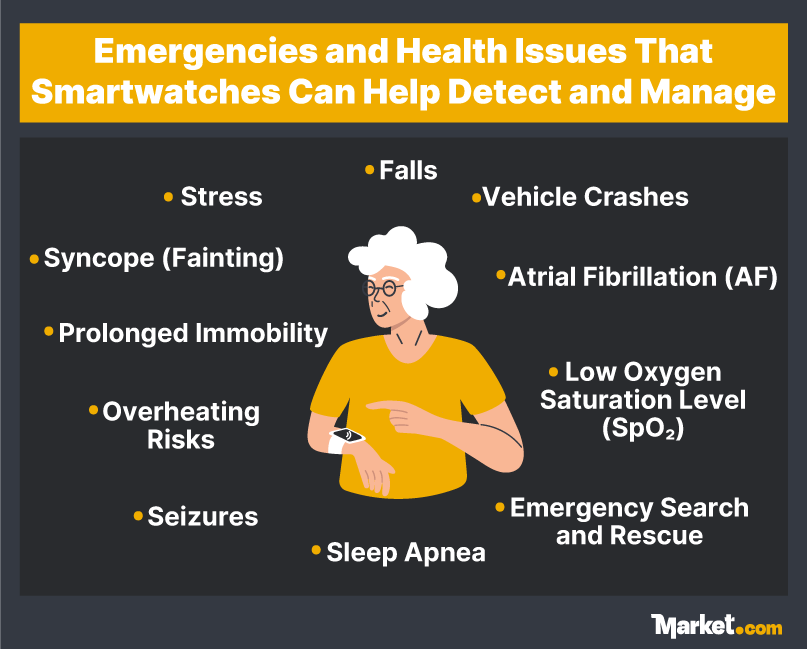
Smartwatches help monitor your vital signs, identify potential health problems, and initiate rescues during emergencies like hard falls or car crashes. This section outlines the medical emergencies that smartwatches can detect and discusses how accurate they are.
Falls
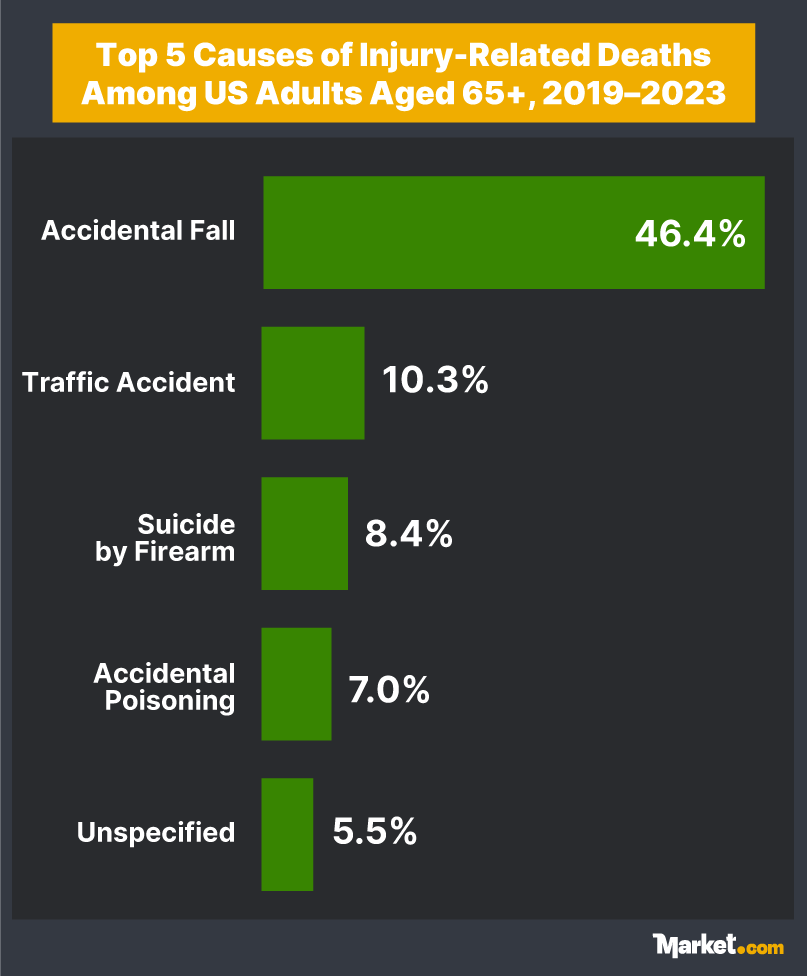
Older adults are more prone to falls due to declining vision and health, chronic conditions, medication side effects, and past injuries. Falls can result in serious injuries; globally, people over 60 suffer the highest number of fatal falls.
Smartwatches have two main features to detect falls:
- An accelerometer: Smartwatches use an accelerometer to track changes in speed.
- A gyroscope: A smartwatch’s gyroscope can track changes in a person’s orientation — the direction the watch (and therefore the person’s arm) is facing.
If the wearer is unresponsive for a period of time, the watch can contact emergency services, share location, and notify loved ones.
However, watches can misinterpret fast movements, such as plopping on your bed or exercising rigorously, as hard falls.
A meta-analysis of several studies found that wearable trackers correctly identified real falls in 81.9% of incidents, and misidentified a non-fall event as a fall only 37% of the time. Depending on a person’s risk, this could make the smartwatch a lifesaving device.
Some smartwatch brands, such as Apple watches, are more accurate than others in recognizing falls. To reduce false alarms, many manufacturers install safeguards such as user confirmation, sensitivity settings, and machine-learning algorithms.
Vehicle Crashes
Vehicle crashes pose a greater risk for seniors than for younger adults. In fact, data from the National Highway Safety Administration shows that, for people aged 65+, the risk of a car accident being fatal increases with age, and is consistently greatest for people aged 80+.
Smartwatches can identify car collisions and initiate emergency procedures such as sounding an alarm or calling emergency services. Smartwatches use a combination of data, such as speed changes from an accelerometer, sudden noise from a microphone, and pressure changes from a barometer.
However, their reliability should be considered before you buy a watch to help detect car accidents. A 2023 study found that, over 6 months, 71% of automatic emergency calls from smartphone and smartwatch crash detectors were false positives.
Atrial Fibrillation (AF) and Abnormal Heart Rates
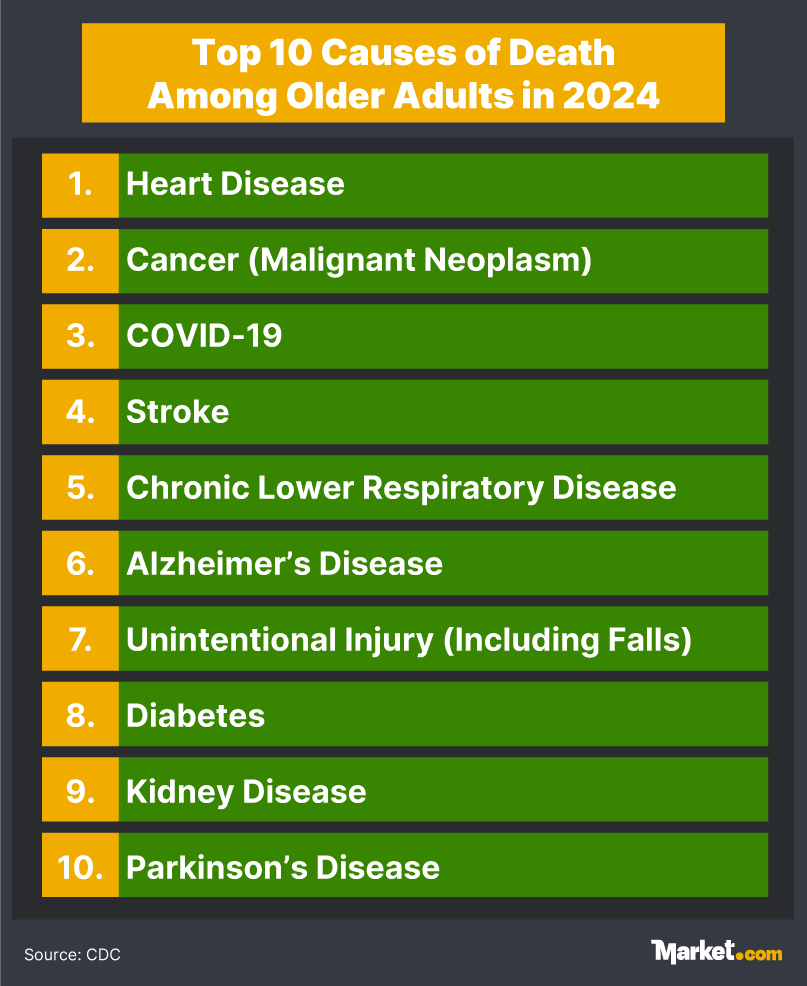
Heart disease is the leading cause of death for older adults. Smartwatches can help with early detection by monitoring heart rates for irregular rhythms (arrhythmia). Certain models are particularly good at detecting signs of atrial fibrillation (AF), which could lead to blood clots that increase the risk of stroke and heart issues. AF is responsible for nearly 600,000 emergency department (ED) visits annually in the US, and affects around 0.5% of the global population.
Using photoplethysmography (PPGs), modern wearables can detect irregular blood flow. And advanced models have single-lead electrocardiograms (ECG), which can more accurately monitor for AF. In one case, an elderly woman received an AF diagnosis from her doctor after her watch alerted her of abnormal heartbeats.
Research indicates that smartwatches are highly reliable at detecting AF, with one meta-analysis reporting that wearables, including watches, catch an average of 94.2% of real cases and correctly identify 95.3% of the false positives.
While smartwatches cannot detect stroke and some other heart issues, early warning signs of AF — a common cause of stroke — could encourage people to get a proper checkup.
Blood Oxygenation Level and Respiratory Rate
A smartwatch can monitor vital health signs like your respiratory rate (RR) and oxygen saturation (SpO2) levels — effectively, the percent of your blood that is carrying oxygen.
At rest, SpO2 should be between 95% and 100%. Levels may dip slightly if you’re at elevation or have had an intense workout, but you need to seek medical help if it drops to 88% or below. Prolonged low levels can cause severe complications, and patients with severe chronic obstructive pulmonary disease (COPD) tend to have lower levels that need monitoring.
Smartwatches track your SpO2 level using pulse oximeters, though accuracy may vary between models. A systematic review of 24 studies found that wearables, on average, registered a mean difference of just 2% compared to actual readings. So a reading of, for example, 95% might be between 93%–97% when taken by a clinical-grade device.
Studies have also found that readings from wrist watches can be affected by movements, lighting, and skin tone. Darker tones in particular have been found to give readings that are significantly higher than the value found by a clinician.
Seizures
Some smartwatch models can identify a type of seizure called generalized tonic-clonic by using built-in PPGs, accelerometers, and third-party apps. This is helpful for seniors with epilepsy or other medical conditions that cause seizures.
A controlled study found that Apple watches with a seizure detection app could detect 100% of seizures in epilepsy patients, but were less accurate in a mixed group that included non-epileptic patients.
Wandering Behaviors Due to Dementia or Mental Illness
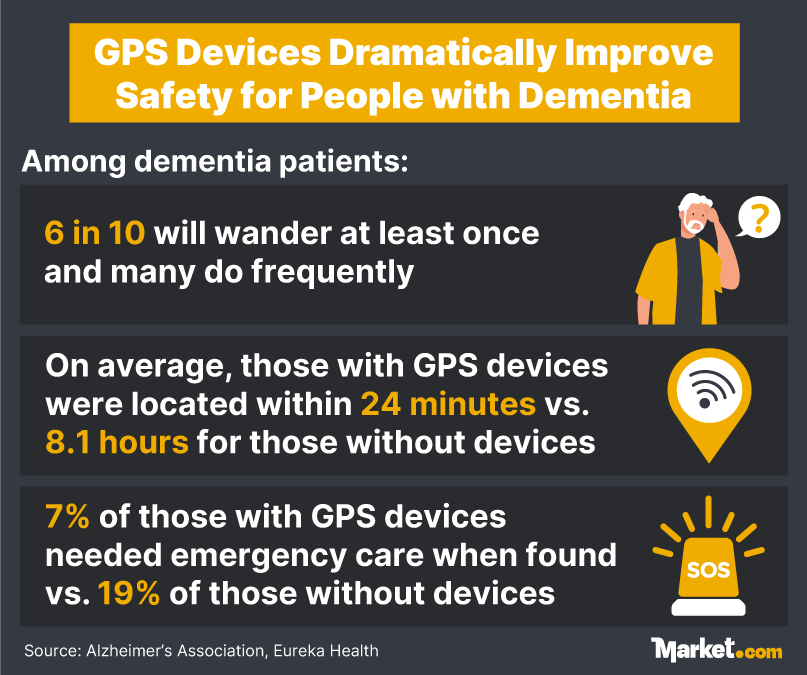
Older adults with dementia, Alzheimer’s (a type of dementia), or mental illness can wander alone and get lost due to their cognitive decline. GPS-enabled smartwatches allow caregivers and loved ones to track the patient’s location in real-time or receive alerts if they leave an established “safe” zone.
A 2023 study of missing persons found that dementia patients with GPS devices were located within 24 minutes on average, compared to 8.1 hours for patients without a device. Patients with a device also had lower injury rates; only 7% of patients with GPS trackers needed emergency care compared to 19% of patients without GPS devices.
While GPS is generally reliable, some patients may refuse to wear smartwatches. Other challenges include short battery life, data privacy concerns, and patchy GPS coverage in certain areas.
Emergency Search and Rescue
If you ever get lost in the wild, you can dial rescue services using a smartwatch with satellite connectivity and share your location using a GPS-enabled watch. Additionally, features like solar power help extend battery life, built-in sirens help grab attention, route retracing helps you find your way back, and built-in flashlights help in low-light conditions.
Smartwatches can also provide real-time weather forecasts and emergency alerts for disasters or imminent threats. Adventure or rugged smartwatches often come with barometers to detect pressure changes, which could help predict extreme weather conditions like a thunderstorm.
Missed Medication
For some people, missing a dose of medication isn’t cause for an emergency, but for others it is. Studies have shown that setting medication reminders on your phone can be effective. One experiment found that seniors with hypertension took their medications more reliably when using wristwatches with reminders and given proper training.
General Limitations of Relying on Smartwatches for Emergencies
While manufacturers are constantly introducing new technologies for emergencies and improving existing features, smartwatches are not foolproof. Their limitations include:
- False Alarms: False alarms are more than an annoyance. When they happen too often, people can begin to ignore them, and risk ignoring an actual emergency.
- Incorrect Setup: Many models require proper setup for the SOS features to work effectively — we cover how to set these features later in this article.
- Requires Charging: You can’t wear your smartwatch 24/7 as it needs to be charged, so there will be gaps when your health isn’t monitored.
- Complex Usability: Certain models may be hard to use for older adults or those with cognitive issues. The screen may also be too small for people with vision problems.
- Comfort Factor: Some models may be flimsy, heavy, or come with straps that make long-term wear uncomfortable.
- Connectivity Requirements: You’ll need a phone or satellite connection to dial from your watch, and certain watches only support Bluetooth for pairing with a phone.
- Privacy Risks: Smartwatch vendors collect a lot of private data, and they may not be transparent about how they handle your data.
What Health Issues Can Smartwatches Detect and Manage?
Apart from detecting falls, vehicle collisions, and medical emergencies, smartwatches can monitor crucial health signals to alert wearers of problems before they become emergencies.
Sleep Apnea
Sleep apnea is a disorder in which breathing intermittently stops and starts while sleeping. Many people may not even be aware that they have sleep apnea. For older adults, sleep apnea combined with daytime sleepiness increases the risk of death.
By monitoring breathing patterns, SpO2 levels, and sleep stages, smartwatches can establish broad sleep trends that suggest when someone needs to seek medical attention. Currently, Samsung and Apple watches have Food and Drug Administration (FDA) approvals to monitor for signs of sleep apnea.
Overheating Risks
Older adults are more at risk of heat-related complications. Worldwide, heat-related deaths for people over 65 jumped around 85% between the periods 2000–2004 and 2017–2021, driven partly by climate change.
Smartwatches have skin temperature sensors to estimate body temperature, alerting you of overheating risks. However, the accuracy can be affected by the surrounding temperature, sweat, and the fit of the smartwatch on your wrist. While smartwatches shouldn’t replace medical-grade devices, they can be a good tool to chart body temperature trends.
Prolonged Immobility
Prolonged sitting leads to poor circulation and muscle weakness, while seniors on bedrest face even greater risks of muscle loss and reduced mobility. Furthermore, a sedentary lifestyle is linked to poorer mental health and chronic diseases.
By monitoring activity levels and setting reminders, smartwatches can encourage older adults to live more active lives. A review of 39 studies showed that using fitness trackers increases physical activity for people of all ages.
Syncope (Fainting)
The Apple Watch and Garmin watches can alert you when your heart rate is abnormally high or low, and this could help detect early signs of syncope, a medical term for fainting. Commonly, heart rate and blood pressure will drop, limiting the amount of blood that flows to the brain before fainting. Syncope is a common condition among people over 70.
Stress
Devices like the Fitbit Sense series have electrodermal activity (EDA) sensors to measure stress levels. By analyzing health vitals like heart rate, body temperature, and breathing patterns, they can detect when you’re experiencing high stress levels. However, studies have shown that these readings can be unreliable, detecting stress when wearers report otherwise.
What Features Should Older Adults Consider in a Smartwatch?
The decision to wear a smartwatch in later life often depends on your health, lifestyle, and living arrangements. Older adults with higher risks of falls, trouble balancing, or muscle disorders would especially benefit from fall-detection features.
Meanwhile, people with chronic illnesses, cognitive decline, or who are recovering from surgery would find features like GPS, emergency SOS, medication reminders, and health sensors valuable.
Smartwatches can also support a more independent life, especially for seniors living alone or in remote areas, giving their loved ones peace of mind. Even healthy seniors will appreciate a smartwatch’s health monitoring tools to track their health vitals, support an active lifestyle, and help establish a baseline of information for what “healthy” means for them.
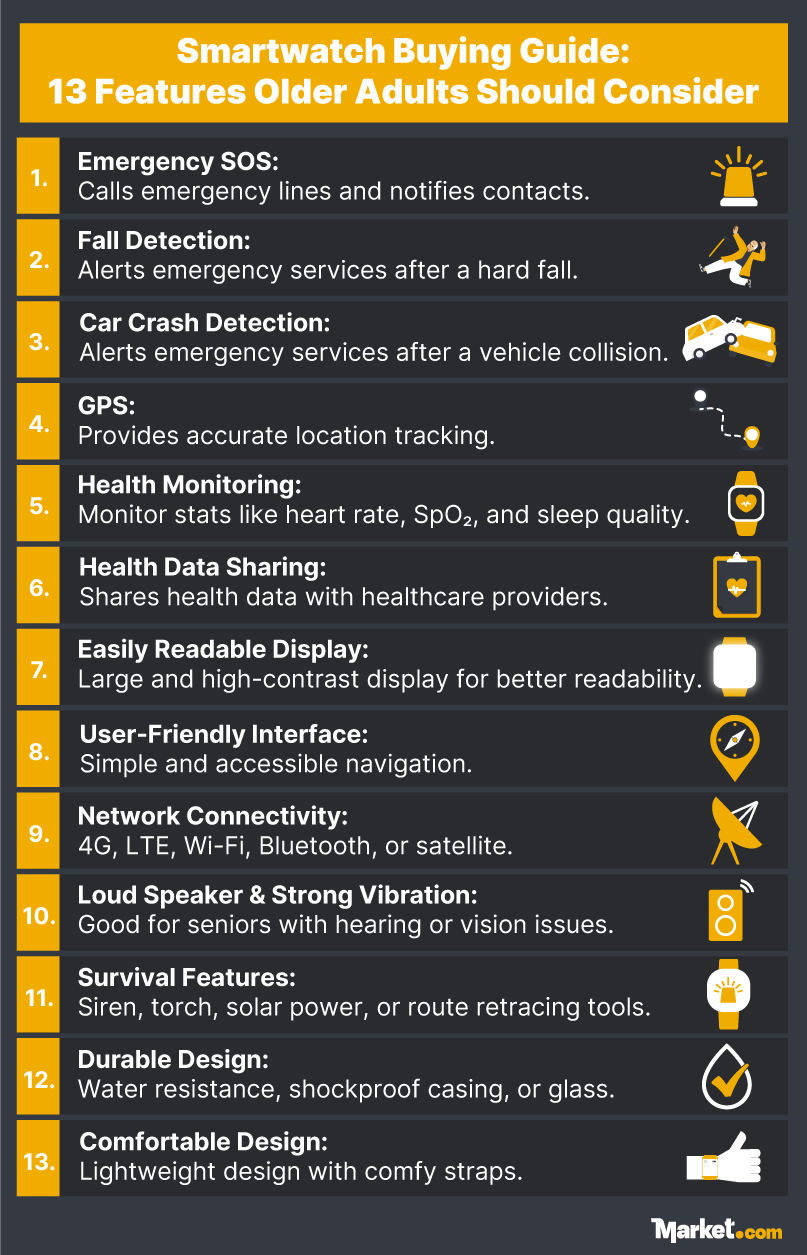
When you’re ready to buy a smartwatch, you need one that matches your needs and budget. We’ve listed smartwatch features you should consider.
-
Emergency Response and Safety Features
Find smartwatches with comprehensive emergency response that include fall and car crash detection, emergency SOS, medical information, and location sharing. Additionally, having GPS, a built-in flashlight, a siren, a step retracing feature, solar power, or satellite connectivity will help you survive should you get lost.
-
Health Monitoring Capabilities
Also consider the smartwatch’s health and wellness tracking features. More than step counts, look for models that can monitor heart rate, oxygen saturation, respiratory rate (RR), activity levels, and sleep quality.
-
Health Data Sharing with Healthcare Professionals
You can share your health details directly with healthcare providers when using certain smartwatches. Apple and Samsung allow health data sharing and health result downloads (in certain countries), while Google allows you to download ECG results through the Fitbit app.
-
Usability and Accessibility
To benefit from a smartwatch’s features, you need to be able to use them. For seniors, look for a model with a large screen, high-contrast display, adjustable text size, and user-friendly navigation. Also, consider accessibility features such as loud speakers and strong vibration if you have (or think you might begin to suffer from) hearing or vision impairments.
-
Durability and Comfort
Opt for a rugged design to survive the occasional drops and bumps. Devices built for the outdoors are usually water-resistant with reinforced glass and shockproof qualities. Additionally, you should consider comfort; a lightweight watch with comfortable straps is more likely to be worn than something heavier or less comfortable.
-
Network Connectivity and Smartphone Compatibility
You may not have your phone with you all the time. In these situations, you need a watch with cellular capability (4G or LTE), Wi-Fi calling, or satellite to dial emergency lines. Additionally, ensure that the smartwatch you’re interested in is compatible with your phone.
-
Battery Life and Charging Options
Built-in sensors and location tracking can drain the battery quickly, so you want to get a model with decent battery life. Battery life varies depending on whether the display is set to always-on, turned off, or the watch is in power‑saving mode. Look for at least 18 hours of battery life and consider charging options such as wireless and fast-charging modes.
Cost
Apart from the price, consider other costs such as a mobile plan (if you don’t rely on your phone), screen protectors, charging accessories, extended warranties, and insurance. The band will also need replacing, and silicone straps could last a year with heavy wear. In the US, you may be able to file a claim through your insurance, Medicare Advantage plan, or veteran benefits.
How to Set Up and Use the Emergency SOS on Your Apple, Samsung, or Google Smartwatch
A smartwatch’s Emergency SOS feature can help you contact emergency services and family during medical emergencies. We’ve outlined steps to enable, customize, and activate the emergency SOS feature for Apple, Samsung, and Google smartwatches.
Please note that instructions may vary based on your country and smartwatch model. For exact instructions, refer to official sources from Apple, Samsung, and Google for your area.
Apple Watch: Setting Up and Activating Emergency SOS
Apple’s Emergency SOS feature will dial emergency numbers and share your location with responders when triggered. Note that location sharing may happen even if you’ve turned off the feature to allow responders to help you faster.
By default, holding down the watch’s side button opens a menu with the emergency SOS slider, and you must swipe to start the call. You can change the setting so that holding down the side button starts a countdown to automatically call emergency services — useful for anyone unable to use the slider.
Enable Automatic Countdown for Emergency Calls
- On your iPhone, open the Watch app.
- Scroll down, and then tap Emergency SOS.
- Tap to turn on Hold Side Button to Dial.
Ways to Activate Emergency SOS (Apple Watch 6 or Later, SE 2 or Later, and Ultra Series)
- Call from your watch: Press and hold the side button until the menu appears, then swipe to the right on Emergency Call.
- Press the side button: Press and hold the side button until your watch emits a sound and starts a countdown to call emergency services. The warning sound works even in silent mode, so contact emergency services using other options if you need to stay silent (e.g., you’re hiding from a threat).
- Ask Siri: You can instruct Siri to call emergency numbers.
Additionally, your watch will text your location to your emergency contacts for 24 hours as part of the emergency procedure. You’ll get a reminder every 4 hours about it, and you can stop sharing by tapping the notification on your watch or you can disable this feature under the Privacy & Security settings on your iPhone.
Add Emergency Contacts
- On your iPhone, open the Health app.
- Tap the Summary tab.
- Tap your profile picture in the upper corner.
- Under your profile, tap Medical ID.
- Tap Edit next to Emergency Contacts.
- To add a contact:
- Tap the (+) button next to Add Emergency Contact.
- Select a contact, and then select their relationship type.
- Tap Done.
Another valuable feature is Check In, which lets your watch notify a contact when you’ve arrived at a destination, after you’ve finished a workout session, or after a set time has passed.
Samsung Galaxy Watch: Setting Up and Activating Emergency SOS
Samsung Galaxy watches can contact emergency responders and share your location with your emergency contacts. You can set up these features through the Galaxy Wearable app on your phone.
When the emergency SOS is triggered, your watch will send alerts to your emergency contacts along with your latest location every 30 minutes over 24 hours. You can stop sending alerts through the SOS notifications on your watch.
Customize Emergency SOS Settings (Galaxy Watch 7, Watch Ultra, or Fit 3)
- On your phone, open the Galaxy Wearable app.
- Tap Watch settings or Band settings.
- Swipe to Safety and emergency, and then tap it.
- From this menu, you can:
- Select emergency contacts.
- Adjust emergency SOS settings such as enabling an automatic call countdown, selecting which emergency number to call, and enabling location sharing with your contacts.
Activate SOS Request
- Press the Home button three times. Certain Galaxy Watch models may require four or five presses.
- Swipe to call. If you have enabled automatic countdown to call, you can skip this step.
Google Pixel Watch: Setting Up and Activating Emergency SOS
The Google Pixel smartwatches can contact emergency services and share your location with responders and your emergency contacts.
A bonus feature is the Safety Check, which lets you set a timer that will automatically share your location with emergency contacts if you fail to check in when the timer ends — good for long hikes and solo travels.
Set Up Emergency SOS
- On your watch, swipe down, and then tap Settings.
- Tap Safety & emergency > Emergency SOS.
- Select how you want to start Emergency SOS:
- Touch & hold to call: Quickly press the crown five times, and then touch and hold the screen for 3 seconds to call emergency services.
- Automatically call: Quickly press the crown 5 times and the watch calls emergency services after a 5‑second countdown.
Add Emergency Contacts
- On your watch, swipe down, and then tap Settings.
- Tap Safety & emergency > Emergency SOS.
- Tap Manage contacts.
- Select whether to allow or deny access to the contacts saved on your phone.
- Tap a contact’s name, and then tap their number to add them.
Activate Emergency SOS
- Press the crown five times quickly.
- Touch and hold the screen for 3 seconds to start the call. If you have enabled automatic countdown, you can skip this step.
How to Set Up Your Medical Information on Apple, Samsung, or Google Smartwatches
Certain smartwatches can store your medical information or medical ID — a health profile with information including medical conditions, allergies, and blood type, which can be viewed by rescue personnel.
Depending on the model, your smartwatch can also share this information during an emergency call. We’ve listed instructions on creating your health profile and how emergency crews can view this information on Apple, Samsung, and Google smartwatches.
Apple Watch: Creating and Updating Your Medical ID
First responders can act faster by viewing your medical details on your locked screen, but you need to enable this setting from your iPhone. Additionally, people in the US and Canada can share their medical IDs during emergency calls.
Set Up and Share Your Medical ID
- On your iPhone, open the Health app.
- Tap the Summary tab.
- Tap your profile picture in the upper corner.
- Under your profile, tap Medical ID.
- To make your Medical ID available from the Lock screen:
- Turn on Show When Locked. This allows people to view your information in an emergency.
- To share your Medical ID with emergency responders (US and Canada):
- Turn on Share During Emergency Call.
- Tap Edit or Add next to the field you want to update.
- Add details such as Medications, Allergies, and Conditions.
- Tap Done.
View Your Medical ID
- Press and hold the side button until the menu appears.
- Slide the Medical ID slider.
- Tap Done when you’ve finished viewing.
Samsung Galaxy Watch: Creating and Updating Your Medical Info
The medical information feature is only available on select models, namely Galaxy Watch 4, Galaxy Watch 5 series, Galaxy Watch 7, and Galaxy Watch 7 Ultra.
Create or Update Your Medical Info
- On your phone, open the Galaxy Wearable app.
- Tap Watch settings.
- Swipe to and tap Safety and emergency.
- From this screen, you can:
- Add your Medical info such as conditions, allergies, blood type, medications, notes, and other information.
View Your Medical Info
- On your watch, press and hold the Home or Power button until a menu appears.
- Tap Medical info under Emergency info to view your medical information.
Google Pixel Watch: Creating, Updating, and Viewing Your Medical Info
During an emergency, rescue personnel can view your medical information on your locked Pixel smartwatch by default. However, if you wish to share your medical details up front during emergency calls, you’ll need to enable this feature.
Enable Medical Info Sharing During Emergency Calls
- On your watch, open Safety.
- Scroll to Emergency Info.
- Tap Emergency Info access, and then tap Share during emergency call.
Create or Update Your Medical Info
- On your phone, open the Safety app.
- Tap Your info > Medical information.
- Enter your medical details.
View Your Medical Info
- On your watch, press and hold the side button to bring up the Emergency info tile and view the medical details.
How to Enable Fall Detection on Apple, Samsung, or Google Smartwatches
Fall detection features will call emergency responders for you if they detect a hard fall and you don’t respond or move within a certain amount of time. This section lists instructions to enable and customize settings for fall detection on Apple, Samsung, and Google smartwatches.
Apple Watch
Apple will enable the fall detection feature for you if you’ve entered an age of 55 or older in the Health app or during the smartwatch setup. When a fall is detected, your watch will vibrate, emit an alarm, and display an alert for you to respond by dismissing it or calling emergency services.
If you don’t respond after one minute, the watch starts a 30-second countdown to contact responders while continuing to vibrate and emit an alarm. It will play an automated message for responders and share your coordinates and medical ID (if you allow sharing).
After the call, the watch will text your emergency contacts to inform them of the incident and share your location too.
Enable Fall Detection
- On your iPhone, open the Watch app.
- Tap the My Watch tab, and then tap Emergency SOS.
- Tap to turn on Fall Detection.
- If already On, select one of the following options:
- Always On.
- Only On During Workouts.
Samsung Galaxy Watch
With Galaxy watches, you can enable hard fall detection and customize settings such as selecting default emergency numbers, and choosing whether to sound an alarm or share your location with emergency contacts.
Enable and Customize Fall Detection
- On your phone, open the Galaxy Wearable app.
- Tap Watch settings or Band settings.
- Tap Safety and emergency.
- Tap to turn on Hard fall detection. If you haven’t added emergency contacts, you’ll need to add them before this feature can work.
- To share location with emergency contacts:
- Tap Hard fall detection.
- Tap the switch next to Share info with emergency contacts.
Google Pixel Watch
When your Pixel smartwatch detects a hard fall, it starts a 30-second countdown, emits a loud alarm to wake you, and prompts whether you need help. If you don’t respond, it will dial emergency services after 60 seconds and share an automated voice message and your location (if sharing is enabled) with responders.
Enable Fall Detection
- On your watch, press the crown.
- Tap Safety > Fall detection.
- Tap to turn on Fall detection.
How to Set Up GPS Tracking and Emergency Alerts for Outdoor Enthusiasts and Seniors with Dementia
A GPS-enabled smartwatch can accurately pinpoint your current location and share it with others, making it ideal for seniors who enjoy outdoor activities or who are at-risk of becoming lost. Studies show that a GPS tracker can significantly reduce the average search time and lower injury rates in missing person cases.
Some watches have geofencing features that can be used to safeguard people with dementia or cognitive decline if they wander from home or “run away” from carers. Geofencing allows you to receive alerts when the wearer leaves an established “safe” area, like a building or the local neighborhood.
This section looks at how to set up GPS and geofencing features on Apple smartwatches, as well as to set weather and emergency alerts for Apple, Samsung, and Google watches.
Setting Up GPS Location Sharing and Safe Boundaries
At the time of this writing, Samsung and Google don’t offer features to share live locations or geofencing from the smartwatch; you can only do this through your paired phone.
On the other hand, Apple smartwatches let you share live locations, find people, and send alerts when someone leaves or arrives at an established area. If you’re using a GPS + Cellular watch model, you’ll still be able to share your location from the watch when the iPhone is not with you.
Enable GPS Location Sharing
- On your iPhone, open the Find My app.
- Tap Me at the bottom of the screen.
- Turn on Share My Location.
- You’ll see the device sharing your location next to From. If it’s not your iPhone, tap Use This iPhone as My Location.
Share Your Location with a Contact (Apple Watch Series 6 or later, SE 2 or later, and Ultra)
- On your watch, open the Find People app.
- Scroll down, and then tap Share My Location.
- Tap Dictation, Contacts, or Keypad to choose a contact.
- Select an email address or phone number.
- Choose the sharing duration: 1 hour, until end of day, or indefinitely.
- To stop sharing your location with a contact, tap your contact’s name on the Find People screen, and then tap Stop Sharing.
Notify a Designated Person When Your Location Changes (Geofencing)
- On your iPhone, open the Find My app.
- Tap People, and then select the person you want to notify.
- Under Notifications, tap Add > Notify [contact’s name].
- Select to notify them when you arrive at or leave a location.
- Select a location or tap New Location to create one and set a radius. A larger radius notifies your contact when you’re nearby, not just at the exact spot.
- Select to notify them once or every time.
- Tap Add.
Setting Up Weather and Wireless Emergency Alerts
Smartwatches can deliver weather updates and real-time disaster alerts, often by pulling data from a paired phone. There are different types of wireless emergency alerts, including imminent threat alerts, government alerts, missing children alerts (AMBER alerts), state-level alerts, and public safety alerts.
On some smartwatches, you’ll need to enable precise location to receive more accurate alerts based on your location.
Apple Watch
You can receive weather alerts for several locations, including your current location. Weather notifications aren’t available in all countries or regions.
Turn on Weather Notifications
- On your iPhone, open the Weather app.
- Tap the Location List button to view locations.
- Tap the More Options button, and then tap Notifications. If prompted, allow notifications from the Weather app.
- From the menu, you can select to receive notifications for severe weather and next-hour precipitation from your location and/or other locations.
- Tap Done.
Turn On Government and Emergency Alerts
- On your iPhone, open Settings.
- Tap Notifications.
- Scroll to the bottom of the page to Government Alerts.
- Tap to turn on or off for different alerts.
Samsung Galaxy Watch
You need to enable emergency alerts from your Samsung phone. You can also customize which phone notifications you see on your watch so you’re not bombarded with alerts.
Turn On App Notifications (Galaxy Watch 4 and Later Models)
- On your phone, open the Galaxy Wearable app.
- Tap Watch settings > Notifications.
- Select App notifications, and then tap the drop-down arrow and choose All to view all installed apps.
- To manage notifications for individual apps, use the switch next to each app.
Turn On Wireless Emergency Alerts
- On your phone, open Settings.
- Tap Notifications.
- Go to Advanced settings, and then tap to turn on Wireless emergency alerts.
Google Pixel Watch
The Pixel weather app provides a 10-day weather forecast and other details like air quality, humidity, and pollen count. However, the app is only available on watches running Wear OS 6 or newer.
Turn On Pixel Weather notifications
- On your phone, open Settings.
- Tap Apps > Pixel Weather > Notifications.
- Turn on all Pixel Weather notifications.
Manage Notifications on Your Pixel Watch
- On your phone, open the Google Pixel Watch app.
- Swipe down, and then tap Settings > Notifications.
- From the app list, turn notifications on or off for each app.
Turn On Emergency Alerts (Pixel Watch 4)
- On your watch, open Settings.
- Tap Sound > Wireless emergency alerts.
- Tap to turn on or off for different alerts.
Power-Conserving Modes and How They Affect GPS Features
Using GPS can drain your smartwatch’s battery faster, which isn’t ideal when it’s already running low. Smartwatches have power-conserving modes that, depending on the model, can affect GPS and other features by slowing or even disabling them, potentially affecting the watch’s emergency SOS and fall detection features.
However, you could still dial emergency lines directly if your watch has cellular or satellite connectivity and enough power to make a call. Check your user manual for details. Here’s how the GPS may be impacted on Apple, Samsung, and Google smartwatches when in battery saving mode.
- Apple watches: Cellular and Wi-Fi connectivity may be limited or disabled in low power mode. Specific models let you reduce the number of GPS readings in the Workout app, useful on long runs or hikes.
- Samsung watches: Location-based features may be limited when in power saving mode. On Ultra models, you can enable ‘Exercise power saving’ mode, which takes less accurate GPS readings, among other things.
- Google watches: To extend the battery life, you can turn on Google’s location accuracy feature that uses other data to determine your location instead of solely relying on GPS.
Data Privacy and Security Considerations
Smartwatches log a wealth of information about your health, lifestyle, and location history. This sensitive data can be used to map out details of your personal health and daily routine, such as when you’re awake or asleep and the places you frequent.
The data your smartwatch collects — especially health and biometric data, but also location and activity tracking — is valuable to cyber attackers. A successful attack can expose you to scams, fraud, identity theft, and other cybercrimes. Furthermore, smartwatch companies could sell or share your data for advertising or other purposes without your knowledge.
For instance, wearables brand WHOOP is facing a class action lawsuit for allegedly sharing sensitive health data with a third party without consent. Google’s acquisition of Fitbit in 2021 also raised concerns that user data could be used for advertising purposes.
Health data from wearables and apps is subject to regulations. In the US, companies are banned from sharing personal health information without user consent. In Europe, the General Data Protection Regulation (GDPR) considers data from wearables as sensitive and requires more protective measures and user consent.
To protect your privacy, read the privacy policy and choose a smartwatch model that allows you to adjust privacy and security settings, manage app permissions, and disable certain features when needed. However, be aware that limiting data collection and sharing may impact some features, preventing them from working fully or at all.
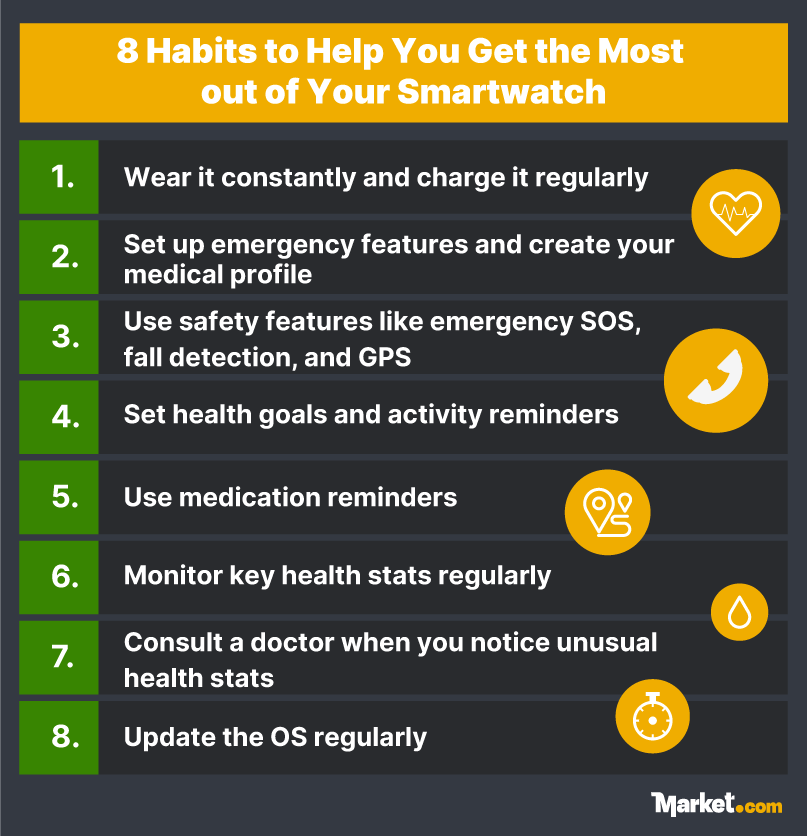
How to Get the Most out of Your Smartwatch
To unlock your device’s full capabilities, you should set up emergency features and GPS, and create a medical profile. Building good habits like wearing and charging your watch regularly and keeping the software up to date will also help maximize your device usage.
The Bottom Line
Smartwatches have evolved from being mere step counters to advanced health equipment, and many are particularly useful for older adults. With features like fall and car crash detection, GPS tracking, AF and sleep apnea detection, medication reminders, and other health-monitoring tools, these devices can catch health issues early and connect you to emergency services during a crisis.
Choose the right smartwatch for your needs by considering cost, emergency features, connectivity, durability, usability, accessibility, and comfort. And don’t forget to set up SOS and GPS features now so they’re ready when you need them.
To make the most of your device, wear it daily and charge it regularly to support a more independent lifestyle and give you and your loved ones the peace of mind that help is available with just a swipe, tap, or push of a button.