
 Ice Makers
 Chairs
 Kettles
 Projectors
 Air Purifiers
 Dash Cams
 Headphones
 Smartwatches
 Blenders
 Humidifiers
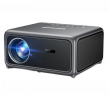

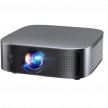
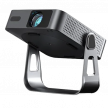
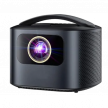

School projectors, business projectors, classroom projectors. These terms describe the same challenge. You need to display readable text to groups of people in rooms that stay lit. Whether you’re teaching 30 students, projecting worship lyrics, or running through quarterly reports, you need a presentation projector that works with the lights on.
These presentation projectors differ fundamentally from home theater models that optimize for darkened rooms. Education and conference hall projectors prioritize brightness and text clarity in ambient light. This guide helps you choose the right projector for classrooms, meeting rooms, worship spaces, and any environment where presentations happen during working hours.
Brightness in Presentation Projectors
Brightness determines everything in presentation environments. I’ve encountered buyers who purchased 1,500-lumen projectors expecting to use them in sunlit classrooms and the disappointment was immediate.
ANSI Lumens vs Marketing Numbers
Brightness specifications can be a bit confusing for first time buyers. You’ll see numbers like “8,000 lumens” or “15,000 lumens” on budget projectors. These represent light source output before the optical system, not what actually reaches your screen. The legitimate measurement uses ANSI lumens (American National Standards Institute) or ISO lumens, which measure brightness at the screen surface using a standardized nine-point testing method.
A projector claiming 8,000 lumens might deliver 300-400 ANSI lumens in actual viewing. Name-brand business projectors clearly state ANSI ratings. But budget models might obscure this with “LED lumens” or unqualified numbers.
Brightness Requirements by Environment
Teachers closing blinds and dimming lights during presentations lose instructional effectiveness because students struggle to take notes in darkness and the drowsiness factor increases. Adequate brightness eliminates these compromises.
Budget constraints push many schools toward 3,000-3,500 lumen projectors as the practical minimum, a range that handles typical classrooms with partial light control. However, 4,500 (+) lumens would be the most ideal as you get to project in fully lit rooms without adjustment.
Recommendation: For standard classrooms and meeting rooms, target 3,500-4,000 ANSI lumens minimum. Rooms with poor light control or windows need 4,500+ ANSI lumens.
The Role of Resolution in Text Clarity
Resolution determines whether your audience reads comfortably or squints in frustration. Poor resolution creates pixelated text, blurs spreadsheet cells together, and makes code illegible from the back row.
Different Resolution Standards
The following options exist:
People often ask about the difference between WXGA and Full HD for classroom use. WXGA handles standard PowerPoint presentations and basic documents adequately. Full HD comes in handy when displaying:
- Spreadsheets with many columns and small fonts
- Technical drawings and CAD files
- Code during programming classes
- Multiple document windows simultaneously
- High-definition video content
As the price gap between WXGA and Full HD narrows yearly, new installations increasingly choose 1080p as the baseline.
For comprehensive information on 4K projection technology, read our 4K Projector Buyer’s Guide.
Recommendation: Choose WXGA (1280×800) minimum for basic presentations. Select Full HD (1920×1080) for technical content, detailed documents, or future-proofing your installation.
How Light Source Technology Impacts the Total Cost of Ownership
The cheapest projector often costs the most over five years because light source technology determines your long-term expense and maintenance burden.
Lamp-Based Projectors
Traditional projectors use high-pressure mercury or metal halide bulbs. These lamps:
- Last 2,000-5,000 hours (2-4 years in typical classroom use)
- Cost $100-$300 for replacement
- Require technical expertise or vendor service calls to replace
- Dim gradually over their lifespan
- Create disposal costs (contain mercury)
At 6 hours daily classroom use over 180 school days, a 4,000-hour lamp lasts approximately 3.7 years. Most schools exceed this through summer programs, evening events, and administrative use.
Budget pressures tempt schools to run lamps beyond their rated life. The result, however, is dim, unwatchable presentations that defeat the projector’s purpose. I’ve encountered many frustrated teachers projecting with exhausted lamps because replacement funds weren’t budgeted.
LED Light Sources
LED projectors eliminate lamp replacement through solid-state lighting:
- 20,000-30,000 hour lifespan (10-15 years in educational use)
- Instant on/off without warm-up or cool-down periods
- Consistent brightness throughout lifespan
- Lower brightness ceiling (typically under 3,000 lumens)
- Higher upfront cost offset by no replacement expenses
LED projectors suit smaller classrooms and meeting rooms where 2,000-3,000 lumens suffices. Note, however, that the technology struggles to achieve the 4,000+ lumens needed for larger spaces.
Laser Light Sources
Laser projectors are the premium solution:
- 20,000-40,000+ hour lifespan
- Achieve 4,000-10,000+ lumens brightness
- Instant on/off operation
- Consistent color and brightness throughout life
- Highest upfront cost with lowest total cost of ownership
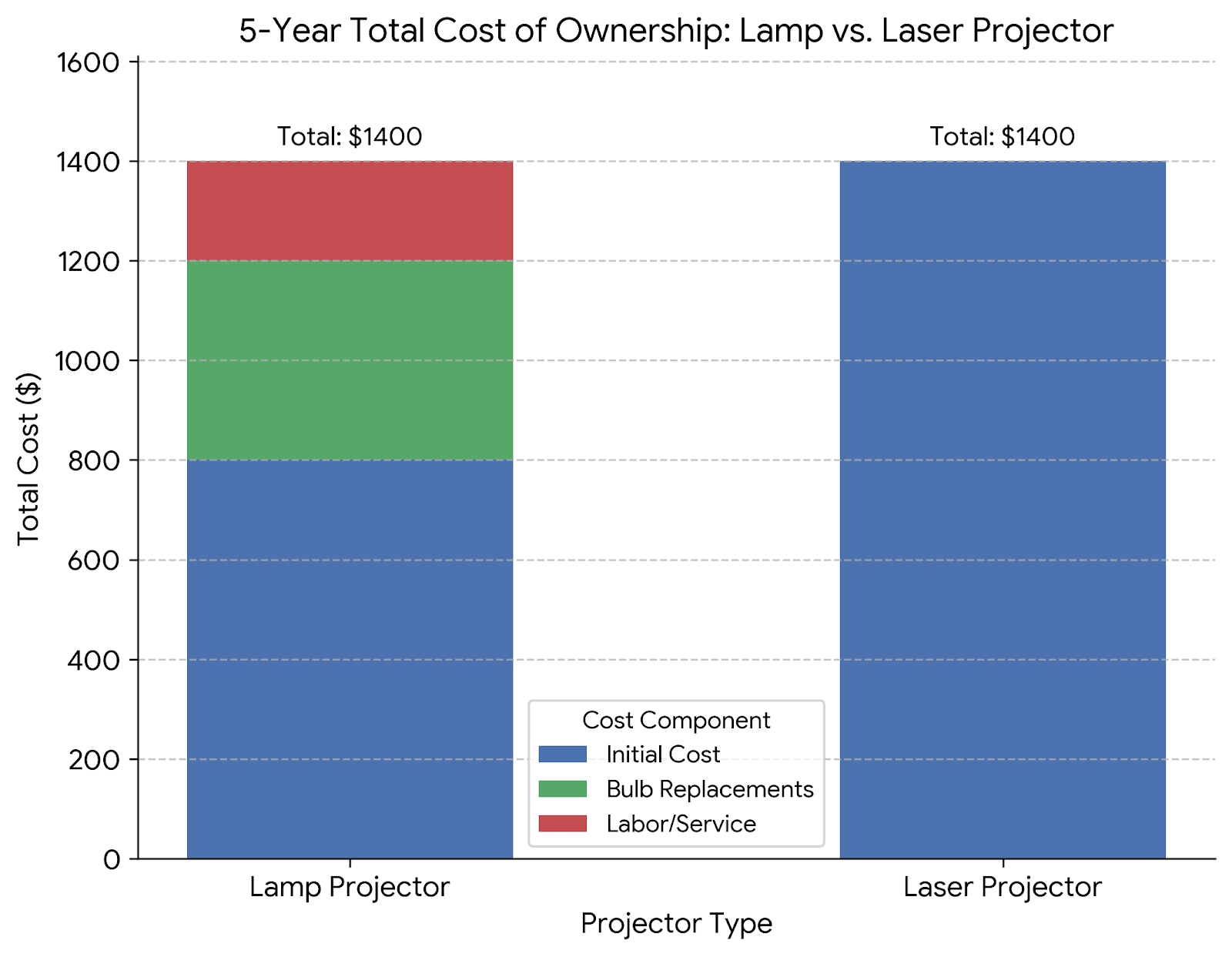
The price premium pays back over 7-10 years through eliminated maintenance. A laser projector costing $1,400 versus an $800 lamp projector breaks even after three bulb replacements plus labor costs.
Financial Calculation Example
Lamp Projector (5-year ownership):
- Initial cost: $800
- Bulb replacements (2): $200 x 2 = $400
- Labor/service calls: $200
- Total: $1,400
Laser Projector (5-year ownership):
- Initial cost: $1,400
- Maintenance costs: $0
- Total: $1,400
The laser projector costs the same while delivering consistent brightness and zero downtime.
Recommendation: Schools and institutions with limited IT support benefit most from laser projectors. Budget-constrained buyers should calculate five-year total cost, not just purchase price. Lamp projectors remain viable when you have in-house maintenance capability and budgeted replacement costs.
Projection Flexibility| Throw Distance and Zoom
Classrooms, conference rooms, and worship spaces rarely offer ideal projector placement. Ceiling tiles, HVAC ducts, structural beams, and light fixtures limit mounting positions. Throw ratio and zoom determine whether your projector accommodates these real-world constraints.
Throw Ratio
Throw ratio defines the distance-to-width relationship. A 1.5:1 throw ratio means placing the projector 150 inches (12.5 feet) away projects a 100-inch wide image.
Standard Throw (1.2:1 to 2.0:1)
This is a traditional classroom setup. The projector mounts toward the back of the room, above or behind audience seating. It works well when ceiling mounting options exist at appropriate distances.
Short Throw (0.4:1 to 1.2:1)
This mounts closer to the screen, reducing shadows when presenters stand near projected images. It’s useful in smaller rooms where back-of-room mounting isn’t feasible.
Ultra Short Throw (0.25:1 or less)
This mounts directly above or below screens, virtually eliminating presenter shadows. The projector sits just inches from the display surface. It’s ideal for interactive whiteboard applications and rooms where students frequently approach the screen.
The Zoom Factor
Optical zoom adjusts image size without moving the projector, allowing a 1.5x zoom lens to project a 100-inch image from either 10 feet or 15 feet away.
This flexibility is invaluable during installation when the perfect mounting spot might be blocked by ceiling infrastructure. Higher zoom ratios (1.5x-2.0x) let installers work around obstacles while still achieving desired screen size.
Some projectors feature fixed lenses with no zoom, forcing compromise between screen size and mounting position, where you either accept a smaller image or relocate the projector.
Digital zoom crops and enlarges the image, reducing resolution and brightness, so only optical zoom provides installation value.
Calculating Your Needs
Use projector throw distance calculators, available on manufacturer websites, to verify compatibility with your space. Measure:
- Available mounting distance from screen
- Desired screen width
- Any installation constraints (ceiling height, structural elements)
Select a projector whose throw ratio accommodates your measurements within its zoom range.
Recommendation: Standard throw projectors with 1.5x-2.0x optical zoom offer the most installation versatility. Ultra short throw models excel in interactive classroom environments but require specialized mounting. Avoid fixed-lens projectors unless your space perfectly matches their throw distance.
Aspect Ratio and Screen Compatibility
Schools replacing projectors often discover their existing screens don’t match modern aspect ratios. Legacy 4:3 screens waste 25% of display area when paired with new 16:9 projectors, leaving large black bars on sides. A 16:10 projector (WXGA/WUXGA) on a 16:9 screen creates similar issues.
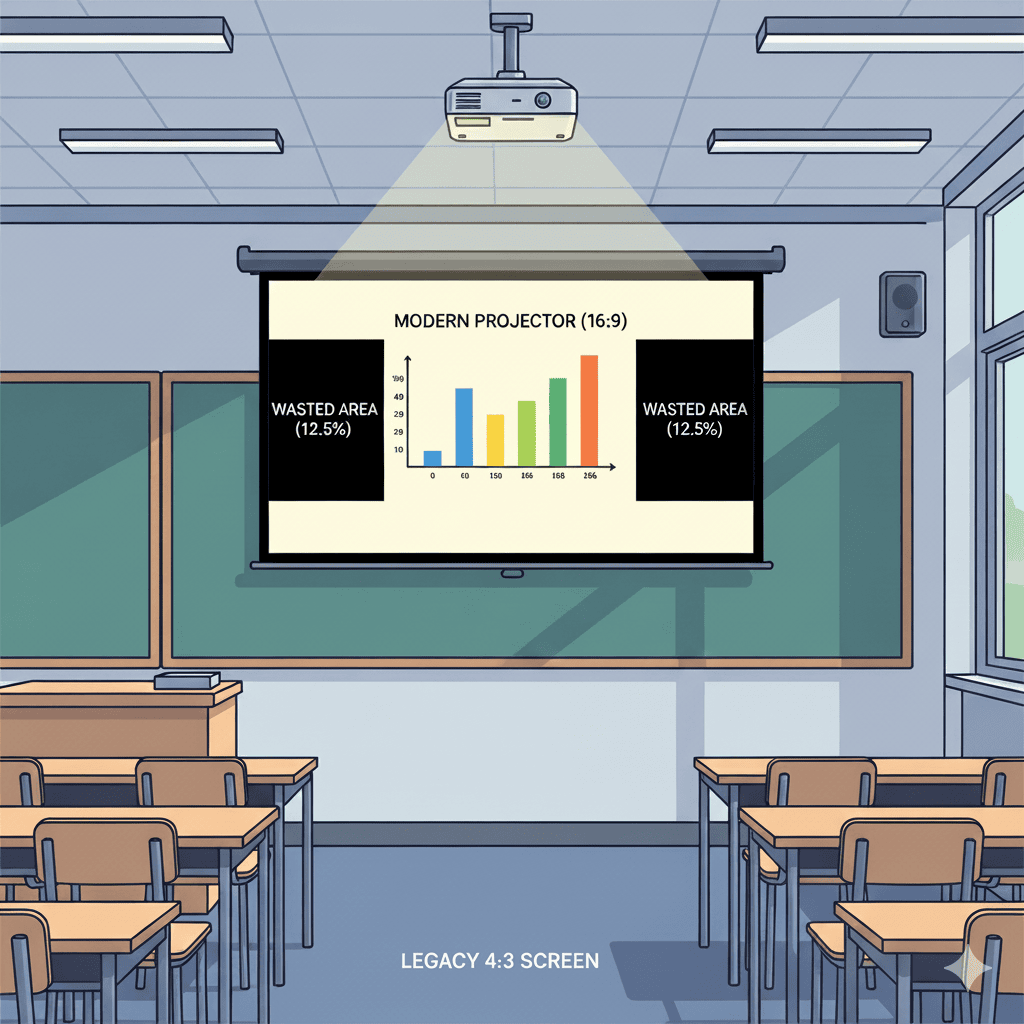
[Using a new 16:9 projector on a legacy 4:3 screen]
Measure existing screens before purchasing projectors, and match aspect ratios in retrofit projects to avoid replacement costs. New installations should use 16:9 projectors because modern content trends widescreen, though 16:10 remains popular in corporate environments where business laptops dominate.
Educational environments display mixed content from different eras, including 4:3 legacy software, 16:10 laptop output, and 16:9 video. Most projectors handle aspect ratio conversion through fill and zoom modes, but switching between formats during lessons disrupts flow.
For comprehensive guidance on choosing, sizing, and installing projection screens for educational environments, read our Projector Screen Buying Guide.
Recommendation: Match projector aspect ratio to existing screens in retrofit projects. Choose 16:9 for new installations. Budget screen replacement if legacy 4:3 screens exceed 10 years old.
Accommodating Every Device
Presentation environments serve diverse technology, and your projector must interface with all of them:
- Windows laptops from 2015 alongside 2024 MacBooks
- Personal iPads and tablets
- Document cameras requiring HDMI
- Legacy equipment with VGA outputs
Therefore, your school/ office/ conference hall projector needs the following essential ports:
HDMI (Multiple Ports Preferred)
This is the universal digital video standard. Dual HDMI ports allow permanent connections to installed computers and document cameras without cable swapping. A visiting presenter connects their laptop to the second port without disturbing existing cables.
VGA
VGA carries analog video from pre-2015 laptops that remain common in education because schools operate 8-10 year equipment refresh cycles. Eliminating VGA forces purchasing adapters or locking out older hardware, so VGA support extends projector utility across institutional technology lifecycles.
USB-A
Enables direct media file playback from flash drives without computers. It also powers streaming sticks (Fire TV, Roku, Chromecast) that add smart features to basic projectors.
USB-C
USB-C handles modern MacBooks and high-end Windows laptops through single-cable connection that provides video, audio, and sometimes power, simplifying presenter setup and eliminating fumbling with multiple cables during meeting starts.
Ethernet
Network connectivity enables remote monitoring, scheduling, and control in IT-managed environments. IT departments push firmware updates, monitor lamp hours, and troubleshoot without physical access to ceiling-mounted projectors.
Wireless Connectivity
WiFi screen mirroring lets presenters share tablets and smartphones without adapters. Useful features include:
- AirPlay for Apple devices
- Miracast for Windows and Android
- Chromecast built-in
Wireless projection introduces latency (0.5-2 second delay) unsuitable for gaming or video playback, though it works adequately for static presentations and documents. Many presenters experience frustration with wireless connection reliability, particularly in schools with congested public networks compared to corporate environments with managed WiFi. For these reasons, wired connections remain the professional standard for important presentations.
Recommendation: Prioritize projectors with dual HDMI, VGA, USB-A, and USB-C ports. Wireless capability enhances convenience but shouldn’t replace wired reliability. Ethernet is important in large institutional deployments with centralized IT management.
Important Features for Presentation Environments
Several features distinguish professional installation projectors from consumer models.
Keystone Correction
Off-center or angled projection creates trapezoidal distortion. Keystone correction reshapes the image into a proper rectangle.
Manual keystone requires navigating projector menus and adjusting vertical/horizontal sliders, where setup takes 3-5 minutes of trial and error.
Auto keystone, on the other hand, uses sensors to detect projection angle and correct automatically within 5 seconds. This is essential for portable projectors moved between rooms daily. Permanently mounted projectors need correction only once during installation.
Advanced systems offer 4-corner, 6D, and 8D correction for complex distortion patterns, which matters mostly with ultra short throw projectors and extreme mounting angles.
Lens shift provides the premium alternative. The lens physically moves within the projector body, adjusting image position without digital correction that degrades resolution. Lens shift appears on higher-end installation projectors, rarely on budget education models.
Fan Noise
Projector cooling fans generate noise competing with instructors, and high-brightness models required for lit rooms demand more aggressive cooling. Budget projectors often exceed 35-40 dB, creating distracting background noise audible throughout classrooms, while premium models achieve an ideal 28-32 dB through larger, slower-spinning fans and efficient thermal design. Noise matters significantly during 6-hour school days compared to 2-hour movie sessions.
Contrast Ratio
Business projectors typically sacrifice contrast for brightness, delivering 2,000-5,000:1 native contrast versus 10,000:1+ in home theater models. Adequate contrast ensures black text on white PowerPoint backgrounds remains crisp rather than gray and washed out.
In well-lit presentation environments, brightness dominates image quality while contrast matters less than in darkened home theaters. Most business projectors, however, provide sufficient contrast for professional presentation content.
Recommendation: Prioritize auto keystone correction if the projector moves between rooms frequently. Fan noise under 33 dB maintains comfortable classroom acoustics. Contrast above 3,000:1 ensures adequate text readability in typical presentation content.
What You Get at Each Price Point
Helping You Make the Decision
Start by measuring your space and determining throw distance requirements. Use online calculators to identify compatible projectors. Then filter by brightness, resolution, and light source technology based on your answers above.
The projector perfect for a small conference room fails in a sunlit gymnasium, while a budget model adequate for occasional presentations frustrates teachers using it six hours daily. Therefore, match the tool to the actual use case rather than buying based solely on price.
The Cheat Sheet
Use this decision framework as a quick reference sheet to match your specific requirements with the right projector specifications: