



If you’re new to tablets or considering buying one, this guide explains what a tablet is, how it works, and how to start using one confidently. You’ll learn how tablets compare to phones and laptops, how to set one up, and what people commonly use them for.
Quick Answer: What Is a Tablet?
A tablet is a portable computer built around a touchscreen interface. Instead of using a mouse or keyboard, you interact with the device using taps, swipes, and gestures directly on the screen.
Tablets sit between smartphones and laptops in terms of capability. They offer larger screens than phones for reading, streaming, and multitasking, while remaining lighter and more portable than most laptops.
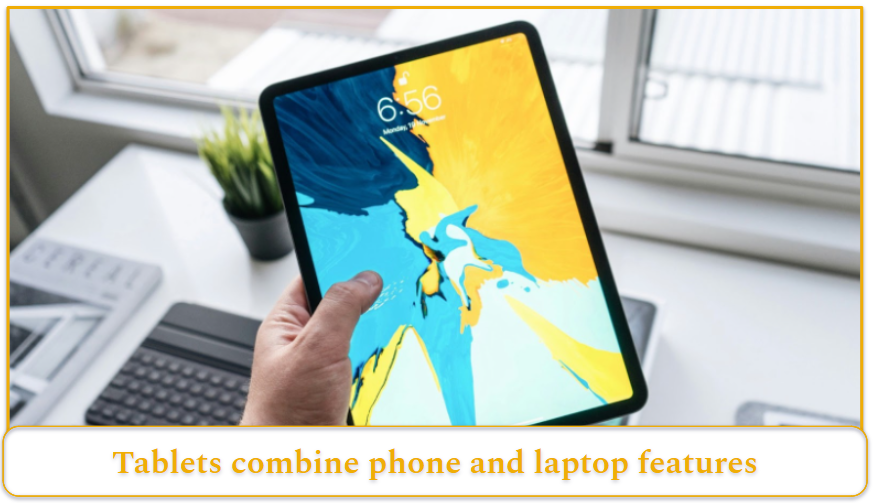
Photo by: Henry Ascroft, Unsplash.com
Key Features of a Tablet
Understanding tablets becomes easier when you focus on the parts people interact with most often:
- Touchscreen interface
- Operating system
- Hardware components
- Accessories
Each of these affects how the device works in everyday use.
Touchscreen Interface
The defining feature of a tablet is its touch-based interface. Instead of controlling the device with a pointer, you interact directly with items on the screen.
Common gestures include:
- Tap
- Swipe
- Pinch or stretch
- Press and hold
These gestures are intentionally simple so beginners can learn them quickly. Even tablets running desktop-style operating systems still support these touch controls.
Tablet Operating Systems
Most tablets run one of three major operating systems.
iPadOS
Apple tablets run iPadOS, which focuses heavily on touch interaction and app-based workflows. Over time, it has added multitasking tools and productivity features.
Android
Android tablets are produced by many manufacturers and range from budget devices to high-end models. The Android ecosystem supports a wide variety of apps and hardware configurations.
Windows
Some tablets run Windows, allowing them to function as hybrid devices that combine tablet portability with traditional desktop software. These models often work best when paired with keyboard accessories.
Hardware Components
You don’t need to understand every technical specification to use a tablet effectively, but a few components affect everyday experience.
- Display: Screen size and quality influence reading comfort and video viewing. Larger displays work well for multitasking and split-screen apps, while smaller tablets may feel easier to hold for long periods.
- Battery: Because tablets are intended for portable use, battery life is an important feature. Many models include software tools designed to reduce long-term battery wear.
- Cameras and microphones: Most tablets include front and rear cameras along with microphones. The front camera is typically used for video calls, while the rear camera can capture photos or scan documents.
- Connectivity: Wi-Fi connectivity is standard. Some tablets add cellular connectivity so the device can access mobile networks away from home. Bluetooth and USB-C connections allow tablets to pair with accessories and external devices.
Tablet Accessories That Expand What You Can Do
Accessories often determine how a tablet fits into daily life.
- Stylus or digital pen: A stylus allows handwriting, drawing, and precise annotation. Many tablets support pressure-sensitive pens designed to mimic the feel of writing on paper.
- Keyboard and trackpad: Keyboard cases can transform a tablet into a compact workstation. They are particularly helpful for writing emails, editing documents, or completing school assignments.
- Protective case: Cases improve grip and reduce the risk of damage if the tablet is dropped. Many also fold into stands, which makes watching videos or joining video calls more comfortable.
Tablets vs. Smartphones vs. Laptops
Tablets occupy a middle position between two familiar device categories.
Smartphones
Phones prioritize maximum portability and communication. Their small screens make them convenient for quick interactions but less comfortable for extended reading or multitasking.
Laptops
Laptops focus on productivity and include physical keyboards and desktop software. They are better suited for complex work, but they are less convenient for relaxed use.
Learn more about the differences between tablets and laptops in my full guide.
Tablets
Tablets offer a balanced experience:
- Larger screen than a phone
- Lighter and more relaxed than a laptop
- Flexible for both entertainment and productivity
How to Use a Tablet: Step-by-Step Guide
For someone new to tablets, the setup process is usually straightforward. While specific menus vary between brands, the overall steps remain similar.
Step 1: Turn On and Set Up the Tablet
- Charge the device if needed: If the tablet does not power on, connect it to a charger.
- Turn on the tablet: Press and hold the power button until the startup logo appears.
- Follow the setup instructions: The tablet will guide you through language settings, accessibility options, and account sign-in.
- Connect to Wi-Fi: Internet access is usually required to complete setup and download updates.
Step 2: Learn Basic Touch Navigation
Once the tablet starts, you’ll control it through simple gestures.
- Tap icons to open apps
- Swipe to scroll or switch screens
- Pinch to zoom in and out
- Press and hold icons to rearrange apps or access other options, similar to right-clicking
These gestures become intuitive quickly.
Step 3: Install Apps
Apps provide most of a tablet’s functionality. You can install apps through the device’s app store, where software is organized by category and search.
Common examples include:
- Streaming apps
- Note-taking tools
- Productivity apps
- Games
- Communication tools
Unused apps can be removed at any time to free storage space.
Step 4: Connect to the Internet
Wi-Fi is the most common connection method. Once a tablet joins a wireless network, it usually reconnects automatically whenever the network is available.
Some tablets also support cellular connectivity. With a compatible data plan, these models can access the internet even when no Wi-Fi network is nearby.
How to Take Care of a Tablet
Keeping a tablet in good condition requires a few routine practices.
- Install system updates regularly. Updates provide security fixes and performance improvements.
- Monitor storage space. Deleting unused apps or files helps maintain smooth performance.
- Clean the screen carefully. A soft cloth is usually enough to remove fingerprints without damaging the display coating.
- Protect battery health. Avoid exposing the device to excessive heat and try not to keep it plugged in continuously at full charge.
Best Ways to Use Your Tablet
Entertainment
Tablets excel as relaxed entertainment devices. Their screens are large enough for comfortable viewing yet small enough to hold while sitting on a sofa or traveling.
Streaming films, watching television shows, listening to music, and playing games are among the most common activities. Because tablets typically start quickly and require little setup, they are convenient for spontaneous entertainment.
Reading and Learning
Reading remains one of the most enduring uses for tablets. Many people rely on them for digital books, articles, academic materials, and reference documents.
Students often use tablets to access coursework, annotate readings, and review notes. The ability to download material for offline access also makes tablets practical during travel or commuting.
Communication
Email and video calls are frequently handled on tablets, especially in shared household settings. A larger screen can make conversations easier to follow and text easier to read.
Because tablets are generally simpler than traditional computers, they are often used by multiple family members for everyday communication tasks.
Productivity and Light Work
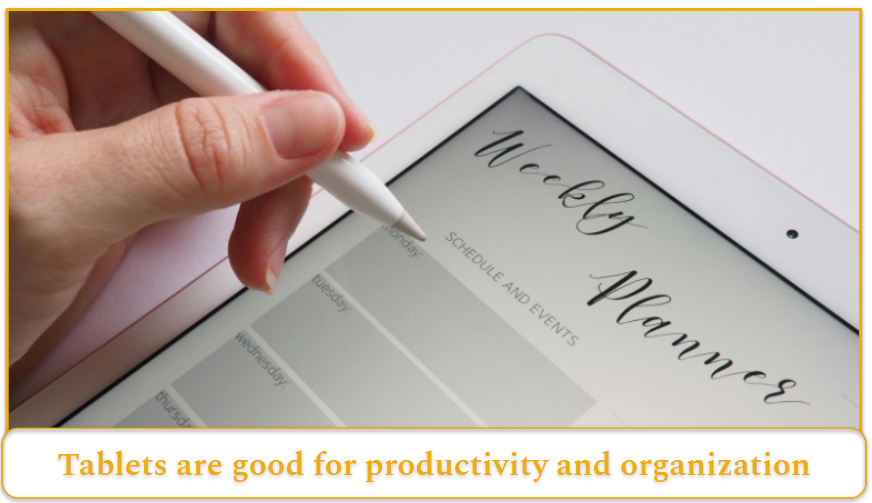
Photo by Jess Bailey, Pexels.com
Tablets can support a variety of work-related activities, particularly when paired with accessories.
Common productivity uses include writing documents, reviewing spreadsheets, organizing calendars, managing tasks, and taking meeting notes. Many people also use styluses to annotate PDFs or sketch ideas during brainstorming sessions.
Software improvements continue to emphasize multitasking features that allow multiple apps to remain open simultaneously, making tablets more practical for work-style workflows.
Creative Tasks
The natural act of drawing directly on the screen makes tablets appealing for artists and designers. Digital pens enable sketching, painting, and photo editing with a level of precision that feels intuitive.
Creative professionals and hobbyists alike use tablets for illustration, graphic design, and visual note-taking.
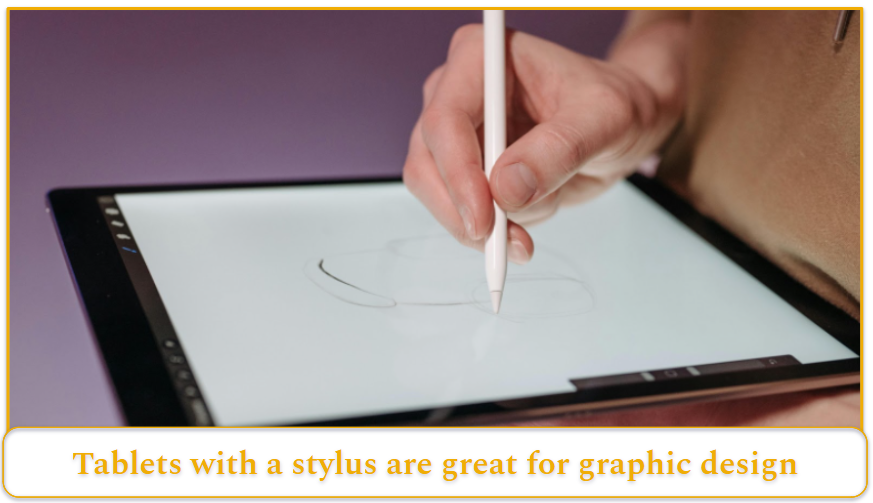
Photo by Pavel Danilyuk, Pexels.com
Quick Tip: My buyer’s guide on tablets can help you choose the right type of tablet for what you’ll be using it for.
Smart Home and Household Control
In some homes, tablets serve as semi-permanent shared screens. When placed on stands or docks, they can display calendars, control smart home devices, or act as central communication hubs.
This role highlights the versatility of tablets as devices that move easily between personal and shared uses.
Advantages and Limitations of Tablets
Tablets offer several clear advantages, but they also have limitations.
Advantages
- Larger screens than phones
- Lightweight and portable
- Simple touch interface
- Flexible for both entertainment and productivity
Limitations
- Less powerful than laptops
- Complex professional software may not run well
- Long typing sessions can be uncomfortable without a keyboard
Useful App Categories for New Users
New users often begin with a few core types of apps:
- Communication tools for email and video calls
- Note-taking or handwriting apps for digital notes
- Office apps for documents and spreadsheets
- Reading apps for books and articles
- Entertainment apps for streaming and music
- Utility apps such as cloud storage or document scanners
Installing apps from official stores helps ensure that the software has been reviewed for security and compatibility.
Tips to Get More Out of Your Tablet
A few habits can make tablets feel more efficient and easier to use.
- Use split-screen multitasking to work with two apps at once
- Add a keyboard accessory if you write frequently
- Organize the home screen so important apps are easy to find
These small adjustments often make the device feel far more convenient during everyday use.
How to Keep a Tablet Secure
Basic security measures go a long way.
- Enable a passcode or biometric lock
- Activate device tracking tools in case the tablet is lost
- Install software updates promptly
- Back up important files regularly
These simple habits help protect both personal information and the tablet itself.