



















A dirty mouse isn’t just unpleasant, it can actually affect how well it works. Dust, oils, and debris build up over time, leading to tracking issues, sticky buttons, and a generally worse experience.
Cleaning your mouse is quick and easy when done properly, but using the wrong method can cause damage. This guide walks you through the safest way to clean your mouse, what to use, and what to avoid.
Quick Answer: How Do You Clean a Mouse?
Unplug or turn off the mouse, wipe the exterior with a lightly dampened microfibre cloth, clean the sensor with a dry cotton bud, and remove debris from crevices with a soft brush or compressed air. Avoid getting moisture near openings or the sensor.
What You Need to Clean a Mouse
The good news is you don’t need anything fancy to keep your mouse sparkling clean, and most of this you probably already have at home.
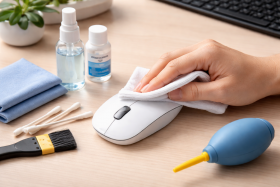
- Microfibre cloth – Picks up dust and oils without scratching the surface or leaving fibres behind.
- Isopropyl alcohol – Helps to cut through grease and grime but evaporates quickly.
- Cotton buds – Useful for tight spots like around buttons and the sensor.
- Soft brush or old toothbrush – Loosens dust and debris from seams and textured surfaces.
- Compressed air – Blows dust out of hard-to-reach crevices. Useful but not essential.
- Wooden toothpick or plastic pry tool – Helps scrape gunk from grooves without scratching plastic.
Avoid:
- Paper towels (leave lint and can scratch)
- Household cleaners (too harsh)
- Abrasive materials (damage coatings)
How to Clean a Wireless or Optical Mouse (Step-by-Step)
Step 1: Disconnect or Turn Off the Mouse
![[MK] Draft: How to Clean a Computer Mouse](https://www.market.com/wp-content/uploads/2026/03/-mk-draft-how-to-clean-a-computer-mouse-1.png)
Unplug a wired mouse or switch off a wireless one. This prevents accidental clicks and, more importantly, keeps you from damaging anything if moisture gets where it shouldn’t. You should also remove any batteries to prevent corrosion if any liquid finds its way inside.
Step 2: Wipe Down the Exterior
![[MK] Draft: How to Clean a Computer Mouse](https://www.market.com/wp-content/uploads/2026/03/-mk-draft-how-to-clean-a-computer-mouse-2.png)
Dampen a microfibre cloth with a small amount of isopropyl alcohol. It should be barely wet, damp not dripping. Gently wipe the top, sides, and buttons to remove oils and grime.
If you don’t have isopropyl you can dilute a small amount of washing up detergent in warm water. Make sure the cloth is only damp, and as this won’t evaporate as quickly, you’ll want a second clean microfibre cloth to dry with.
Step 3: Clean the Crevices
![[MK] Draft: How to Clean a Computer Mouse](https://www.market.com/wp-content/uploads/2026/03/-mk-draft-how-to-clean-a-computer-mouse-3.png)
Grime loves to collect in the seams around buttons and the scroll wheel. Use a lightly dampened cotton swab to work into these gaps. A dry soft brush helps loosen stubborn buildup first. For really compacted dirt in grooves, a wooden toothpick can scrape it out without scratching.
Step 4: Clean the Scroll Wheel
![[MK] Draft: How to Clean a Computer Mouse](https://www.market.com/wp-content/uploads/2026/03/-mk-draft-how-to-clean-a-computer-mouse-4.png)
Roll the wheel slowly while wiping it with a damp cloth or cotton swab. Debris tends to accumulate on the wheel’s edges and the housing around it. If it feels stiff or sticky, this is usually why.
Step 5: Clean the Sensor
![[MK] Draft: How to Clean a Computer Mouse](https://www.market.com/wp-content/uploads/2026/03/-mk-draft-how-to-clean-a-computer-mouse-5.png)
Turn the mouse over and locate the optical sensor (the small lens on the underside). Use a dry cotton swab to gently wipe across it. Don’t press hard or use liquid here. Even a tiny smudge can affect tracking, so this step makes a noticeable difference.
Step 6: Clean the Mouse Feet
![[MK] Draft: How to Clean a Computer Mouse](https://www.market.com/wp-content/uploads/2026/03/-mk-draft-how-to-clean-a-computer-mouse-6.png)
The glide pads on the bottom pick up desk debris and can get sticky over time. Wipe them gently with a damp cloth. If they’re worn or peeling, replacements or skate stickers are cheap and easy to apply.
Step 7: Let It Dry
![[MK] Draft: How to Clean a Computer Mouse](https://www.market.com/wp-content/uploads/2026/03/-mk-draft-how-to-clean-a-computer-mouse-7.png)
Wait a few minutes before reconnecting or turning the mouse back on, especially if you used any liquid. It should be completely dry to the touch before use.
How Often Should You Clean a Mouse?
There’s no single answer, but here are some guidelines for different situations:
General Home Use
A quick wipe-down every few weeks keeps things fresh. A deeper clean (including the sensor and crevices) once a month is usually enough.
Gaming or Heavy Use
Sweat, snacks, and long sessions mean more buildup and a shorter cleaning cycle as a result. A light clean weekly and a thorough clean every two weeks is sensible.
Shared or Office Mice
These should be cleaned more frequently since multiple people are touching them. A quick wipe before and after your shift is reasonable. If you’re responsible for shared equipment, a weekly deep clean helps.
Signs It’s Time to Clean
- The mouse feels greasy or sticky
- Buttons are harder to click or feel gummy
- The scroll wheel is stiff or unresponsive
- Tracking feels inconsistent or jumpy
- You can see visible grime in the seams or on the main body
It can feel easy to put things off but don’t wait for problems or it to become obvious. Regular light cleaning prevents buildup from becoming a bigger job, and is a good first step before troubleshooting issues like tracking inconsistencies.
Mistakes to Avoid When Cleaning a Mouse
Using too much liquid.
Your cloth should only be damp, not wet. Excess moisture can seep into the mouse through button gaps, the sensor opening, or the scroll wheel housing, and cause irreparable internal damage as a result.
Spraying cleaner directly onto the mouse.
Always apply liquid to your cloth first, never spray the mouse itself. This gives you control over how much moisture you’re using and keeps it away from openings.
Using harsh or abrasive cleaners.
Household cleaners, bleach, and abrasive pads can damage plastic finishes, strip coatings, and leave residue that actually attracts more dirt rather than getting rid of it long term. Stick to isopropyl alcohol or just plain water.
Cleaning the sensor with liquid.
The optical sensor is incredibly sensitive and needs gentle care. Moisture or residue on the lens can cause tracking issues so always use a dry cotton bud or a gentle puff of air.
Forgetting the mouse pad.
Most mouse pads are fabric so do a wonderful job of trapping day-to-day gunk. A dirty mouse pad transfers this grime right back onto your clean mouse! If you’re cleaning your mouse, give the pad a wipe too (or even throw it in the washing machine if it’s fabric).
Overdoing it with compressed air.
Blasting air too close or at the wrong angle can push debris further into the mouse rather than out of it. Use short bursts from a few inches away, angled to blow debris outward.
FAQs
Can I Use Alcohol Wipes to Clean a Mouse?
How Do I Clean Sticky Mouse Buttons?
Sticky buttons are usually caused by grime buildup around the edges. Use a cotton bud dampened with isopropyl alcohol and work it around the button’s perimeter. Click the button repeatedly while cleaning to help work the alcohol into the gap.
If that doesn’t help, the stickiness might be underneath the button, which typically means the mouse needs to be opened and deep-cleaned by a professional.