














Digital notepads are purpose-built writing devices designed to replicate the experience of pen and paper while adding the advantages of digital storage and organization. Unlike general-purpose tablets, they focus almost entirely on handwriting, reading, and document annotation, deliberately avoiding distractions such as notifications, social apps, and entertainment.
If your primary goal is to take notes, study, plan, or work through PDFs with minimal friction, a digital notepad can replace stacks of notebooks without trying to replace your laptop. These devices are also widely used by artists, designers, architects, and other creative professionals who want a distraction-free drawing and annotation surface.
This guide explains what truly matters when choosing one, where tradeoffs are unavoidable, and how to avoid common buying mistakes. For broader device comparisons and buying advice, check out our tablet buyer’s guide.
Digital Notepad vs Tablet: What’s the Difference?
Digital notepads aren’t “better tablets.” They’re different tools built for a narrower purpose. Digital notepads are built around E-Ink displays, long battery life, and simplified software.
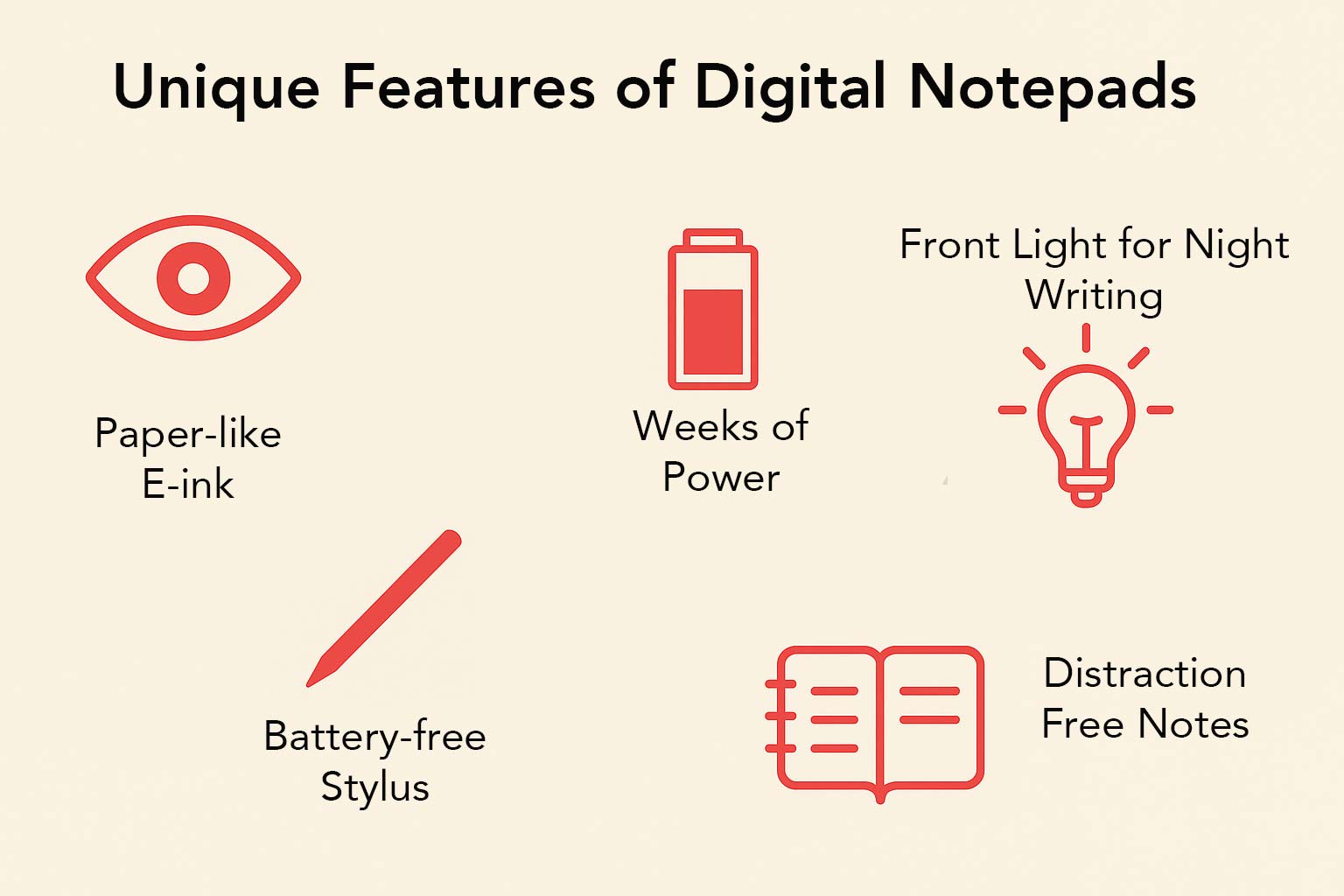
At the heart of this experience is the E-Ink screen. Unlike traditional LCD or OLED displays, E-Ink mimics real paper by reflecting ambient light instead of emitting its own. This makes text and handwriting easier on the eyes, improves outdoor readability, and dramatically reduces power consumption. Because the display only consumes power when the page changes, battery life is measured in days or weeks rather than hours.
Just as importantly, the software environment is intentionally restrained, which helps you stay focused on writing instead of juggling apps.
In practical terms, digital notepads prioritize:
- Writing comfort over speed and animation
- Reading clarity over color saturation
- Focused workflows over app flexibility
If you need apps, browsing, or video, a tablet is the better choice. If you want distraction-free writing and reading, a digital notepad is purpose-built for that job. If you’re still deciding between form factors, our tablet vs laptop comparison guide explains when a traditional computer or tablet makes more sense.
Key Specs & Features Explained
E-Ink Display Types (Monochrome vs Color)
Most digital notepads use black-and-white E-Ink Carta displays. This type delivers high pixel density with strong contrast, which is ideal for text, diagrams, and handwriting. If your work is mainly notes, forms, and PDFs, monochrome Carta remains the clearest option.
Color E-Ink adds flexibility but introduces tradeoffs. Some displays use a color filter layer over a monochrome panel, producing muted, pastel-like colors with slightly reduced sharpness. Others use color pigment technology for richer hues, often at the cost of slower refresh speeds.
Color E-Ink is most useful if you regularly work with:
- Planners or calendars that rely on color coding
- Charts, maps, or diagrams
- Multi-color highlighting systems
Front lights are common and important. Unlike a backlight, a front light shines across the surface, so you can set cool or warm tones for comfort. For taking notes at night or in dim lecture halls, a front light is essential. If you’re comparing reading experiences across devices, our tablet vs Kindle vs iPad comparison breaks down the strengths and limitations of each.
What To Look For
✔️ Monochrome E-Ink Carta for text-heavy notes
✔️ Front lighting with adjustable warmth
✔️ Good contrast and even lighting across the screen
What To Avoid
❌ Paying extra for color E-Ink you won’t actually use
❌ Dim or uneven front lighting
❌ Expecting tablet-like color saturation
How Writing Feels on a Digital Notepad (Pen, Latency, & Texture)
Writing quality is the most important part of any digital notepad, and it depends on how well the pen and the screen surface work together. This combination is especially important for artists, designers, illustrators, and architects, where precision, pressure control, and surface texture directly affect drawing accuracy and comfort.
Writing feel is shaped by several factors:
- Latency: Lower latency improves fluidity and makes handwriting feel more natural
- Screen texture: Matte or etched surfaces add control and reduce slipping
- Pen tip material: Softer nibs add grip, while harder nibs glide faster and last longer
- Palm rejection: Prevents stray marks when your hand rests on the display
The best devices use EMR styluses. These pens don’t require charging and support pressure sensitivity, tilt recognition, and reliable palm rejection, allowing you to write naturally with your hand resting on the screen.
Look for low latency, which means the line appears almost instantly as you move the pen. Under roughly 30 milliseconds feels seamless for most writers.
If you sign PDFs or draw diagrams frequently, make sure the pen tools include fine line weights, shape snapping, and easy undo or lasso selection. These features make a noticeable difference in everyday use.
What To Look For
✔️ EMR pen that doesn’t require charging
✔️ Low latency (under ~30 ms) with smooth stroke tracking
✔️ Matte or lightly textured screen surface for control
✔️ Reliable palm rejection for natural hand placement
What To Avoid
❌Pens that need charging or frequent pairing
❌ Noticeable lag between pen movement and ink
❌ Slick glass surfaces with no texture
❌Limited pen tools for PDFs or diagrams
Tip materials vary, so you can choose softer nibs for more grip or harder nibs for smoother glide. Extras such as a rear eraser, a side button for selection, or a magnetic attachment add convenience.
How Digital Notepads Store, Transfer, and Export Notes
Export and backup workflows are non-negotiable. A digital notepad should never trap your notes inside the device. Most modern digital notepads can receive documents easily, either through email, cloud syncing, or companion apps. This makes it simple to send PDFs, Word files, and scanned paperwork directly to your device for annotation.
At a minimum, your notes should leave the device in universal formats, especially PDF, so you can share, archive, or print without a proprietary viewer. Many devices also support PNG for individual pages and occasionally SVG for vector shapes.
Cloud and sync workflows differ. Some brands provide their own cloud for backup and cross-device access, while others connect to storage services such as Dropbox, Google Drive, or OneDrive. When you’re working offline, email export and USB transfer remain simple and reliable ways to move your notes.
Transferring notes from an older digital notepad is usually straightforward. Most platforms allow bulk export of notebooks as PDFs, which can then be imported into your new device using cloud sync or USB transfer. While digital notepads don’t include built-in scanners, you can scan physical documents using your phone and send them directly to the device for markup and annotation. This workflow works well for contracts, printed forms, handwritten notes, and study materials.
For heavy note-takers, two additional features save time:
- Handwriting-to-text conversion for shareable notes
- Search across handwritten notes for quick retrieval
What To Look For
✔️ PDF export without proprietary formats
✔️ Email, cloud, or USB transfer options
✔️ Handwriting search or text conversion if you take many notes
What To Avoid
❌ Notes locked behind subscriptions
❌ Limited export options
❌ No clear backup workflow
How Much Performance Do Digital Notepads Really Need?
Tasks on an E-Ink notepad are lighter than on a media tablet, yet performance still matters for opening large PDFs, switching notebooks, and running recognition. Closed systems tend to use efficient mid-range chips that are tuned for writing and reading.
Android-based models lean on faster multi-core processors with more RAM, which helps with split-screen, third-party note apps, and big document libraries.
For smooth everyday use, 2 GB of RAM is serviceable on simple systems, while 4 GB or more is advisable if you annotate heavy PDFs or run multiple apps. A brisk processor also shortens page refresh times and speeds up OCR. If performance and multitasking are top priorities, traditional Windows tablets may be better suited for heavier workloads.
Common Buying Mistakes
Most disappointment comes from mismatched expectations. Common pitfalls include:
- Paying extra for color E-Ink without needing it
- Overlooking export limits or subscription requirements
- Underestimating storage for PDF libraries
- Assuming all pens feel similar
Understanding these tradeoffs upfront prevents regret later.
Recommended Digital Notepads Models
Flagship All-Rounder — reMarkable Paper Pro
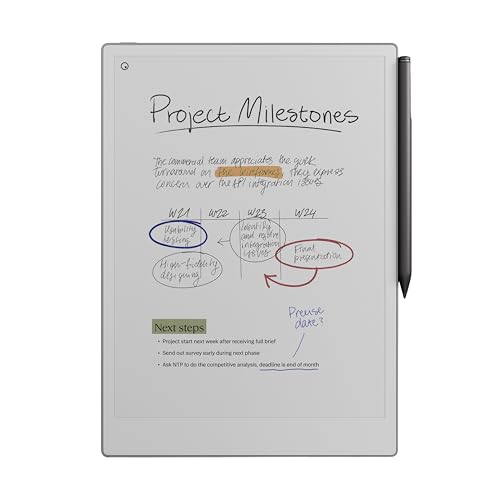
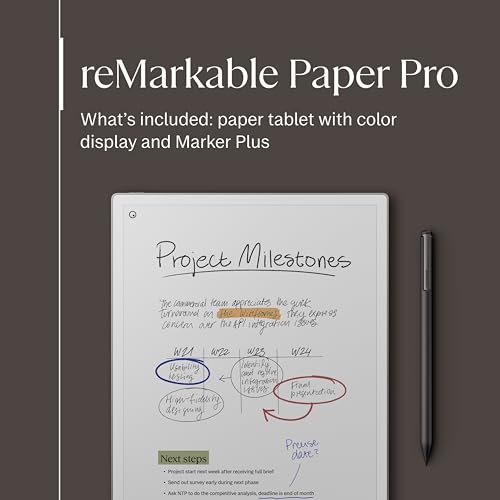

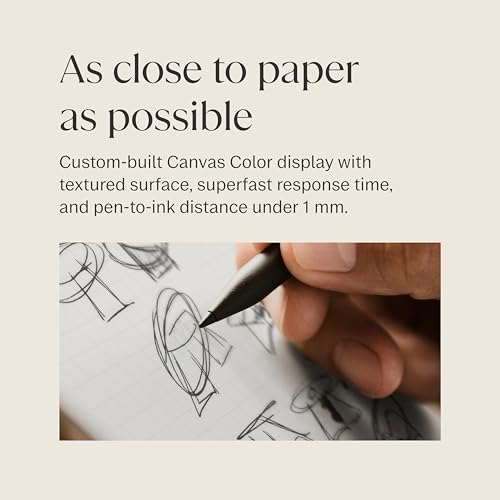

The reMarkable Paper Pro is defined by a large canvas, a refined pen feel, and a premium chassis. The color E-Ink screen brings subtle hues for highlights and charts, while keeping the monochrome clarity needed for writing.
Writing latency is exceptionally low, and the front light makes it comfortable in low-light settings. Export options include PDF, common image formats, and direct sync through companion apps.
Expect very strong battery life under typical note-taking and reading workloads. Choose this model if writing feel and focus are your absolute priorities, and you want light color support on a large canvas.
Mid-range Productivity — Onyx Boox Note Air2 Plus
The Onyx Boox Note Air2 is the flexible choice for power users who want both excellent handwriting and broader capabilities. The 10.3-inch monochrome Carta display is sharp, with adjustable warm and cool lighting. Writing latency is low, the EMR pen is compatible with common Wacom-style replacements, and the note app supports layers, shape tools, lasso, and conversion.
The Android base allows third-party apps for storage, books, and productivity, which turns the device into a versatile work companion. The aluminum frame is sturdy and slim, with a comfortable side grip, and the battery life is solid with minimal standby drain.
Pick this model if you need powerful PDF handling, app flexibility, and robust export, while staying in the E-Ink world.
Budget-Friendly — Amazon Kindle Scribe

The Kindle Scribe offers the best price-to-performance ratio in a large notepad, the Scribe stands out. The 10.2-inch, high-density display delivers superb text clarity for reading and document markup. The battery-free pen attaches magnetically, and writing feels quick and responsive.
PDF annotation and document transfer are straightforward, with simple email export for notebooks. Adjustable front lighting supports reading at any time of day, and available storage options handle large libraries easily.
Choose this if you want a dependable writing and reading device, excellent screen quality, and long battery life at a lower cost.