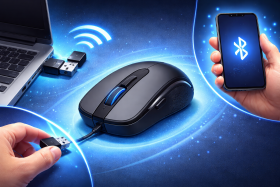










If you’re setting up a new wireless mouse, it’ll likely connect to your computer in one of two ways: with a USB dongle or via Bluetooth. Whichever it is, setup should be fast and simple. Plug in the receiver or pair through your settings, and you’re working within a minute or two.
That said, hiccups happen and sometimes things aren’t as easy as they should be. Dead batteries, pairing confusion, and driver issues can stall what should be a simple process. In this guide, we’ll walk through both connection methods step-by-step, cover the major operating systems and devices, and offer a few quick fixes for the most common problems.
Quick Answer: How Do You Connect a Wireless Mouse?
For USB receiver mice, plug the dongle into a USB port and turn the mouse on. It’ll connect automatically as most come pre-configued out of the box. For Bluetooth mice, enable Bluetooth on your device, put the mouse in pairing mode (usually by holding a power or sync button), and select it from your device’s Bluetooth settings.
How Wireless Mice Connect
Wireless mice use one of two connection methods, though some support both.
USB Receiver (2.4 GHz Wireless)
Most wireless mice include a small USB dongle that’s pre-paired with the mouse.
Why use it:
- Instant plug-and-play setup
- More stable, low-latency connection
- Best for gaming and performance
Bluetooth
Bluetooth connects directly to your device without a dongle.
Why use it:
- Frees up a USB port
- Ideal for laptops and tablets
- Cleaner, more portable setup
Trade-off: Slightly more setup and occasionally less responsive than USB.
How to Connect a Wireless Mouse With a USB Receiver
-
Insert Batteries or Charge the Mouse
![[MK] Draft: How to Connect a Wireless Mouse](https://www.market.com/wp-content/uploads/2026/03/-mk-draft-how-to-connect-a-wireless-mouse-1.png)
Check for a battery compartment (usually on the underside) or plug in the charging cable if it’s rechargeable.
-
Locate the USB Receiver
![[MK] Draft: How to Connect a Wireless Mouse](https://www.market.com/wp-content/uploads/2026/03/-mk-draft-how-to-connect-a-wireless-mouse-2.png)
It’s small, about the size of a fingernail usually, so you might need to go searching. If you can’t find it in the retail packaging, check the mouse itself. Many store the dongle inside the battery compartment or in a slot on the mouse’s underside.
-
Plug the Receiver into a USB Port

You can use any available port, but one directly on your computer tends to work better than a USB hub. Front ports or those closer to your workspace often provide a stronger signal.
-
Turn the Mouse On
![[MK] Draft: How to Connect a Wireless Mouse](https://www.market.com/wp-content/uploads/2026/03/-mk-draft-how-to-connect-a-wireless-mouse-4.png)
Flip the power switch (usually on the bottom). Some mice have an LED that blinks or glows to confirm power.
-
Wait for Automatic Setup
Your computer should recognise the mouse within a few seconds. Windows, Mac, and Chromebook all install basic drivers automatically, so there’s nothing to download.
-
Test Movement
Move the mouse and confirm the cursor responds. If it doesn’t, try a different USB port or check that the batteries are seated correctly.
How to Connect a Bluetooth Mouse
Bluetooth setup varies slightly by operating system, but the process follows the same pattern: enable Bluetooth, put the mouse in pairing mode, then select it from your device’s Bluetooth menu.
Mac (macOS)
- Turn on the mouse and enable pairing mode. This usually means holding a dedicated pairing button (often on the bottom) for 3-5 seconds until an LED blinks rapidly.
![[MK] Draft: How to Connect a Wireless Mouse](https://www.market.com/wp-content/uploads/2026/03/-mk-draft-how-to-connect-a-wireless-mouse-5.png)
- Click the Apple menu > System Settings (or System Preferences on older macOS versions). You can also jump to Bluetooth settings through Control Centre in the top right.
![[MK] Draft: How to Connect a Wireless Mouse](https://www.market.com/wp-content/uploads/2026/03/-mk-draft-how-to-connect-a-wireless-mouse-6.png)
- Select Bluetooth and make sure it’s turned on.
![[MK] Draft: How to Connect a Wireless Mouse](https://www.market.com/wp-content/uploads/2026/03/-mk-draft-how-to-connect-a-wireless-mouse-7.png)
- Your mouse should appear under “Nearby Devices.” Click Connect next to its name.
![[MK] Draft: How to Connect a Wireless Mouse](https://www.market.com/wp-content/uploads/2026/03/-mk-draft-how-to-connect-a-wireless-mouse-8.png)
- Once paired, the mouse moves to “My Devices” and will connect automatically in future.
![[MK] Draft: How to Connect a Wireless Mouse](https://www.market.com/wp-content/uploads/2026/03/-mk-draft-how-to-connect-a-wireless-mouse-9.png)
Windows 10 and 11
- Turn on the mouse and activate pairing mode.
- Open Settings > Bluetooth & Devices (Windows 11) or Settings > Devices > Bluetooth (Windows 10).
- Make sure Bluetooth is toggled on.
- Click Add device and select Bluetooth.
- Your mouse should appear in the list. Click its name to pair.
- Wait for the “Connected” confirmation, then test the cursor with a quick wiggle.
Chromebook
- Turn on the mouse and enable pairing mode.
- Click the time in the bottom-right corner to open Quick Settings.
- Click the Bluetooth icon (or select it from the expanded menu).
- Toggle Bluetooth on if it isn’t already.
- Your mouse should appear in the available devices list. Click to pair.
- Connection confirms automatically. Test the cursor.
Tablets and Mobile Devices
iPad (iPadOS): Go to Settings > Bluetooth (or use the Control Centre) and make sure Bluetooth is on, put your mouse in pairing mode, and tap its name when it appears. iPads running iPadOS 13.4 or later support mice natively, and a circular cursor appears once connected.
Android tablets: Open Settings > Connected devices > Pair new device (wording varies by manufacturer). Enable pairing mode on your mouse and tap to connect. Most Android tablets running version 4.0 or later support Bluetooth mice without needing additional apps.
Common Problems When Connecting a Wireless Mouse (And Quick Fixes)
Wireless mice are actually quite simple and most connection issues have simple causes as a result. Below are a few quick diagnostic checks for the most common issues. For deeper troubleshooting, see our full [wireless mouse troubleshooting guide].
Mouse Not Turning On
Likely cause: Dead or improperly seated batteries.
Quick fix: Replace batteries or charge fully. Confirm the power switch is in the “on” position and check that batteries are oriented correctly. If your rechargeable mouse works while plugged in but not with the cable detached, the battery may be gone and need replacing (which usually means a new mouse).
Computer Not Detecting the Mouse
Likely cause: Receiver not paired, Bluetooth not enabled, or mouse not in pairing mode.
Quick fix: For USB receiver mice, try a different port and make sure there’s no obstructions between the receiver and the mouse. For Bluetooth, confirm pairing mode is active (look for a fast-blinking LED) and that your device’s Bluetooth is on.
Cursor Not Moving Properly
Likely cause: Interference, low battery, or surface issues.
Quick fix: Move the USB receiver closer to the mouse and ensure they have a line of sight, replace batteries or charge if they’re low, and try a different surface or mouse pad. Reflective or glass surfaces can disrupt optical tracking.
Having other issues? Try our detailed troubleshooting guide for wireless mice.
Tips for Reliable Wireless Mouse Connections
- Keep the receiver close. If your mouse feels laggy or skips, try moving the USB receiver to a front port or use a short USB extension to position it on your desk where you can see it.
- Replace batteries proactively. Don’t wait for complete failure. Low state of charge in the battery can cause erratic behaviour before it dies entirely.
- Avoid USB hub interference. Plugging the receiver into a crowded hub can cause signal issues. A port directly on the computer tends to work better.
- Update Bluetooth drivers periodically. Outdated drivers occasionally cause pairing failures, especially after major OS updates. These should automatically update too, but it’s worth checking for any mouse firmware updates or PC driver updates if you notice strange behavior.
- Use an appropriate surface. Optical and laser sensors struggle on glass, mirrors, and highly reflective surfaces. A basic mouse pad solves most tracking issues.