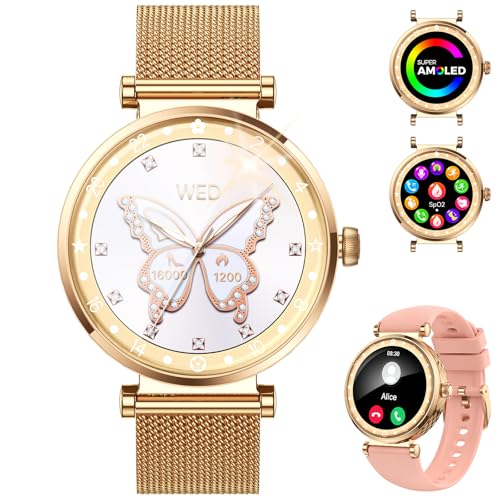


















Smartwatches are a popular accessory for anyone interested in wearable tech or building a brand-loyal ecosystem in their daily life. They make it easy to track health metrics (including sleep), stay connected to your favorite apps, and check the time without needing to pull out your phone.
Whether you’re using an Apple Watch, Samsung Galaxy, Google Pixel, or Garmin, you’ll need to go through a unique setup process to get connected. Most smartwatches require pairing with a smartphone to access most – or sometimes all – features. Before getting started, make sure you’ve purchased a watch compatible with your phone, and have any relevant login information so your data can sync smoothly across devices.
How To Set up a Smartwatch: Step by Step
While every smartwatch has slightly different setup instructions, the overall process is similar. The steps below use an Apple Watch as an example, but you can adapt them to most models. Your watch will also include a built-in setup guide to walk you through each stage.
Step 1: Get Your Smartphone Ready
Turn on your smartphone and connect it to Wi-Fi or mobile data. Keep it close to your smartwatch and ensure Bluetooth is turned on. Some watches require downloading a companion app, so check the manufacturer’s requirements in advance.
Step 2: Turn on Your Smartwatch
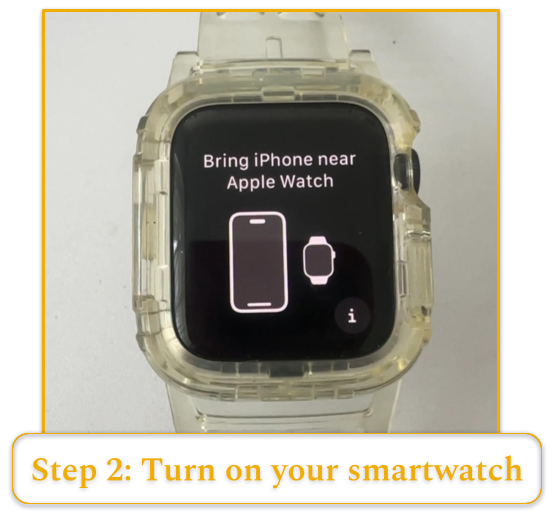
Power on your smartwatch. On an Apple Watch, this involves pressing and holding the side button until the screen lights up.
Step 3: Pair Your Devices

Use Bluetooth or Wi-Fi to pair your devices. Some models, like the Apple Watch, will automatically detect the smartwatch and prompt you to connect. For others, you may need to open a companion app or manually pair through your phone’s Bluetooth menu. Pairing may involve entering a code or scanning an image.
Step 4: Choose a Language & Accept the Terms
When connecting, you’ll likely be prompted to select a language and accept the manufacturer’s terms of service, which will cover topics like data sharing and privacy. It’s a good idea to read through the agreement, though we know it’s tempting to just click “Accept.”
Step 5: Link Your Accounts
To get the most out of your watch, like messaging, calendar alerts, and app syncing, you’ll likely need to log into your Apple, Google, or Samsung account. This allows your devices to sync important data correctly.
Step 6: Personalize Your Settings
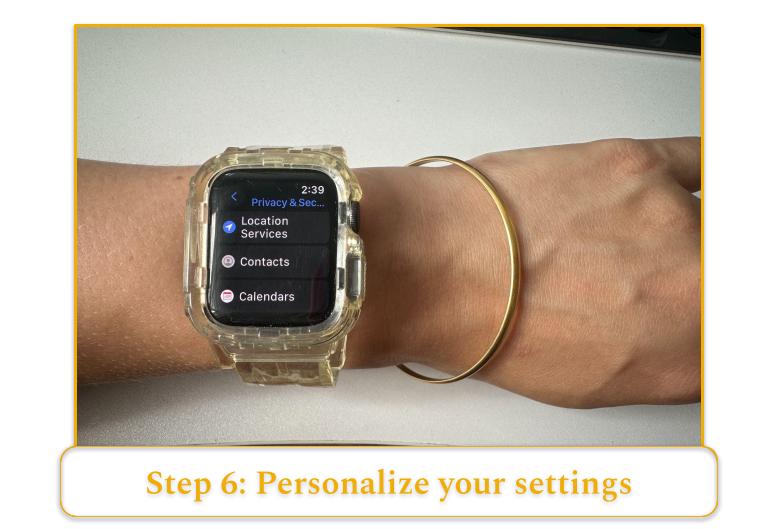
After pairing, most watches will guide you through a series of setup prompts. These may include your tracking preferences, notification settings, and health data collection. You may also be asked about location services, haptics, emergency SOS features, and more. Don’t stress – these settings can always be changed later.
Step 7: Explore and Customize
After completing setup, you can personalize your watch face with designs, photos, and widgets. You’ll also be able to download apps and explore other features. Test functions like texting, workout tracking, and familiarize yourself with physical buttons or touchscreen controls.
How To Set up a Smartwatch Without a Phone
Not all smartwatches support full setup without a smartphone. Models with built-in cellular or eSIM capabilities, such as certain Apple and Samsung watches, offer the most independence.
If you want a smartwatch that functions without a phone or cellular data, a fitness tracker (like a Garmin) that doesn’t require a companion app to deliver important data.
Either way, the setup process is largely the same, just without the pairing step.
How To Set up a Kid’s Smartwatch
A child’s smartwatch is typically paired with a parent or guardian’s phone using a companion app. Smartwatches designed for kids allow you to identify parent contact info and establish usage rules.
The setup process mirrors that of an adult’s smartwatch but includes features such as app restrictions, contact approvals, time limits, and GPS/location sharing synced to the guardian’s device. Involving your child during setup can help them understand how the watch works and feel more comfortable using it.
4 Tips for Getting the Most Out of Your Smartwatch
- Build a charging routine. Like your phone, your smartwatch needs regular charging. Battery life can range from 6–96+ hours, depending on the model and usage. Create a convenient charging plan – whether that’s a nightstand charger, a travel option, or a just-in-case backup – to keep your watch powered throughout the day.
- Upgrade comfort with the right accessories. The right accessories can make a big difference in comfort and usability. A well-fitting watch band that matches your style and feels good for long periods can greatly improve the overall experience.
- Explore features at your own pace. Basic setup is easy, but to truly benefit from your new tech, take your time exploring. Many customization options and hidden features are worth discovering. Some apps, like Apple Health, need time and data to provide accurate insights. For example, the Apple Watch recommends recording a baseline workout (like a 20-minute outdoor walk) to better track future activity.
- Personalize your watch face. Smartwatches usually offer plenty of cosmetic customization, especially when it comes to watch faces. This is what you’ll see most often, so choose what information you’d like front and center. Whether that’s weather updates, calendar events, or daily fitness stats, experimenting with different designs and color schemes can help you find one you’ll enjoy using throughout the day.
FAQ
How can I call from my smartwatch?
How do I connect a second watch to my phone?
Do I need a phone plan for my smartwatch?
What app do I need to connect to my smartwatch?
- Apple Watch: Watch app (pre-installed on iPhone)
- Samsung: Galaxy Wearable app (iOS and Android)
- Google Pixel / Wear OS: Wear OS app, compatible with several brands like Fossil and Skagen
Always check app compatibility and device requirements before purchasing your smartwatch.