













A mouse that stops working is frustrating, but it’s rarely a mystery. Most failures come down to a handful of common causes, and the majority are easy to fix without any technical expertise. Whether it’s a dead battery, a dodgy connection, or a software hiccup, you can usually get things working again in a few minutes.
This guide walks through the most likely culprits and how to fix them, starting with the simplest checks and working toward less common issues. We’ll cover both wired and wireless mice along the way, too.
Quick Answer: Why Is My Mouse Not Working?
The most common reasons are dead batteries in wireless mice, a loose or faulty USB connection for wired mice, Bluetooth pairing or receiver issues, driver problems, or a dirty sensor. Occasionally it’s hardware failure, but that’s less common than you’d think.
Common Causes of Mouse Problems
Before diving into fixes, here’s a quick overview of what typically goes wrong to cause issues in the first place:
- Dead or low batteries – The most common cause for wireless mouse issues. Low batteries can cause erratic behaviour before they die completely.
- Connection issues – Loose USB cables, faulty ports, or a receiver that’s come unplugged.
- Bluetooth or receiver conflicts – Pairing problems, interference from other devices, or the mouse connecting to the wrong device.
- Driver or software issues – Outdated, corrupted, or conflicting drivers can cause all sorts of odd behaviour.
- Surface problems – Reflective, glass, or uneven surfaces can confuse optical sensors.
- Dirty sensor – Dust or grime on the sensor affects tracking.
- Hardware failure – Less common, but cables fray, switches wear out, and components eventually fail.
How to Find Out Why Your Mouse Isn’t Working (and Fix It)
Work through these steps in order. We’ll start with the most simple and common remedies. Only move on if the previous step didn’t solve it.
1. Check the Power
Wireless Mice
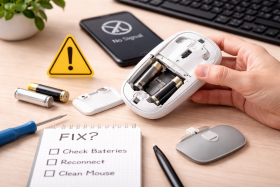
Replace batteries or plug in and fully charge the mouse if it’s rechargeable. Even if the batteries aren’t completely dead, low power causes tracking issues and random disconnections.
Wired Mice
Is it plugged in properly? Unplug the cable and plug it back in firmly, or try a different USB port. Check the cable for visible damage, especially near the plug and where it meets the mouse.
2. Check the Connection
USB Receiver (Wireless)
Make sure the receiver is plugged in securely. Try a different USB port, ideally one directly on the computer rather than a hub. If the receiver is at the back of a desktop, try a front port or a USB extension to bring it closer and within line of sight to the mouse.
Bluetooth
Confirm Bluetooth is enabled on your computer, as this can often accidentally be toggled off. Check that the mouse is paired and connected (not just showing in the list of devices). If it shows as connected but isn’t working, remove it from your Bluetooth devices and pair it again from scratch.
Wired
Try a different USB port. If your mouse only works in certain ports, the issue is the port, not the mouse.
3. Check the Surface and Sensor
Flip the mouse over and look at the sensor. If there’s visible dust, hair, or grime, clean it gently with a dry cotton swab or microfibre cloth. Some sensors also have an LED that should glow when the mouse is powered on.
Test the mouse on a different surface. Optical sensors struggle with glass, mirrors, and highly reflective or transparent surfaces. If you’re using one of these, try a mouse pad or even a plain sheet of paper as a test.
4. Restart Your Computer
It sounds obvious, but a restart clears out temporary files and general oddities that can affect USB devices and Bluetooth connections. If your mouse stopped working after waking from sleep or after an update, this often sorts it.
5. Check Drivers and Software
Open Device Manager (Windows) or System Information (Mac) and look for your mouse. If there’s a warning icon next to it, the driver may be corrupted or missing.
Windows
Right-click the mouse entry and select “Update driver” or “Uninstall device,” then restart. Windows will reinstall the driver automatically.
Mac
Mice generally don’t need separate drivers on Mac, but if you’ve installed manufacturer software, try removing it and testing with the default settings.
If your mouse has companion software (for DPI settings, macros, etc.), try uninstalling and reinstalling it.
6. Test on Another Device
Plug your mouse into a different computer. If it works there, the problem is with your original computer (likely a USB port, driver, or software conflict). If it doesn’t work anywhere, the mouse itself is probably faulty.
7. Check for Interference (Wireless Only)
Wireless mice can be affected by other 2.4 GHz devices, USB 3.0 ports, and nearby electronics. If your mouse is erratic rather than completely dead, try:
- Moving the receiver closer to the mouse
- Plugging the receiver into a USB 2.0 port instead of USB 3.0
- Moving away from other wireless devices (routers, keyboards, headphones)
8. Know When to Replace
If you’ve worked through everything above and the mouse still doesn’t work, it’s starting to look like a hardware failure. Cables wear out, switches fail, and wireless receivers die. If the mouse is old or inexpensive, replacing it is usually more sensible than attempting repairs. Mice come with a warranty, so check your original receipt for details and reach out to the manufacturer if necessary.
FAQs
Why Is My Mouse Connected but Not Moving?
Why Does My Mouse Keep Disconnecting?
For wireless mice, low batteries are the most common cause. A weak signal (a receiver that’s too far away or blocked) can also cause intermittent dropouts. For Bluetooth mice, interference from other devices or software conflicts may be responsible.
Wired mice that disconnect often have a damaged cable or are poorly seated in the USB port.