














![Wireless Keyboard and Mouse Backlit - Typewriter Keyboard with Magnetic Wrist Rest, Retro Round Keycaps, Light Up Letters, 2.4GHz Cordless Combo for Mac, Windows, PC, Laptop, Trueque [Upgraded]](https://m.media-amazon.com/images/I/41Uiyydvg9L._SL300_.jpg)


Wireless keyboards are no longer just about removing cables—they’ve become flexible, multi-device tools that can replace entire desk setups.
The challenge is that most buying advice focuses on traditional specs like switches and materials, when the real differences come down to how the keyboard connects, performs wirelessly, and fits into your daily workflow.
In this guide, we’ll focus on what actually matters first, then break down the rest so you can choose confidently.
For more general information about keyboards, see our complete Keyboard Buyer’s Guide.
Quick Answer: How Do You Choose a Wireless Keyboard?
Choose a wireless keyboard with dual-mode connectivity (Bluetooth + 2.4 GHz), multi-device pairing, and strong battery life first, then pick your preferred switch type and build quality. For most people, flexibility and reliability matter more than advanced specs like RGB or macros.
Wireless Features (Start Here)
Before anything else, your experience with a wireless keyboard is defined by how it connects, how stable it is, and how easy it is to use across devices.
Bluetooth vs. 2.4 GHz: Which Connection Should You Use?
Wireless keyboards connect in two main ways, and choosing the right one depends on how you use your device.
Bluetooth connects directly to your laptop, tablet, or phone without needing a USB receiver. It’s ideal for clean setups, portability, and switching between multiple devices. However, it can sometimes feel slightly less responsive and may be less stable depending on your device.
2.4 GHz wireless (USB dongle) uses a small receiver plugged into your computer. This connection is faster and more reliable, with lower latency and fewer dropouts, making it the better choice for gaming or precision work.
For most users, the best option is a keyboard that supports both, aka dual-mode connectivity, for flexibility.
- Use Bluetooth for tablets, phones, or travel
- Use the dongle for your main computer for better performance
- Switch between them instantly
If you use more than one device or want maximum reliability, this is the feature to prioritize.
Multi-Device Pairing (One Keyboard for Everything)
Many wireless keyboards can connect to multiple devices at once and switch between them with a single button.
This means you can:
- Type on your laptop, then instantly switch to your phone
- Work across a desktop, tablet, and secondary device
- Avoid owning multiple keyboards
For anyone who multitasks across devices, this is one of the most useful features you can get.
Battery Life and Power Type
Wireless keyboards either use rechargeable batteries or replaceable AA/AAA batteries, and both have advantages.
Rechargeable models are more convenient long-term and charge via USB-C, but may need charging every few days or weeks depending on usage. Replaceable batteries last much longer—often months—but require occasional replacement.
The biggest factor affecting battery life is backlighting. RGB lighting can reduce battery life dramatically, while turning it off can extend usage significantly.
A good rule of thumb is to aim for:
- At least 40–50 hours of real-world use (rechargeable)
- Or several months (replaceable battery models)
Sleep and Wake Responsiveness
To save power, wireless keyboards go to sleep when idle. The important part is how quickly they wake.
High-quality keyboards wake instantly and register your first keystroke without delay. Lower-end models may lag or miss the first input, which becomes frustrating over time.
This is a small detail, but it has a big impact on everyday usability.
Wired Mode (Backup Option)
Some wireless keyboards allow you to plug in a cable and use them as a wired keyboard.
This is useful for:
- Charging while using the keyboard
- Avoiding connection issues
- Ensuring reliability during long sessions
It’s not essential, but it’s a valuable feature if you want flexibility.
Standard Keyboard Features (What Matters Next)
Once the wireless experience is solid, these features determine how the keyboard feels and performs.
Switch Type (Typing Feel and Noise)
The switch is the mechanism under each key, and it defines how the keyboard feels to use.
Mechanical switches use individual components for each key, delivering precise feedback and a long lifespan. They’re ideal for heavy typing, gaming, and users who want a consistent feel.
Scissor switches, commonly found in laptops, are low-profile and quiet, offering a stable and comfortable typing experience without much noise. They’re well-suited for office environments.
Membrane switches use a rubber dome design, making them softer and quieter, but less precise and less durable over time. They’re typically found in budget keyboards.
For most people, the best choice depends on environment and use:
- Mechanical for performance
- Scissor for quiet productivity
- Membrane for basic use
Key Rollover (Anti-Ghosting)
Key rollover describes how many simultaneous key presses can be accurately detected. A keyboard with “N-key rollover” (NKRO) can recognize unlimited presses at the same time without errors, which is critical for fast typing and gaming.
Less advanced models might only support 6 or 10 keys pressed together before errors occur. For casual office use this may not matter, but for demanding tasks, NKRO ensures no keystrokes are dropped. It’s a defining feature that separates performance-oriented keyboards from basic models.
Build Material & Quality
The materials used in a keyboard greatly influence durability and stability. Premium boards often feature aluminum or steel top plates that resist flexing, while entry-level models rely on plastic.
High-quality plastics can still feel sturdy, but metal adds a sense of solidity and long-term reliability. Keycap material also plays a role, with PBT caps resisting shine and wear much better than cheaper ABS caps.
A solid frame and durable keycaps extend the keyboard’s lifespan and make for a more satisfying typing experience, making build quality a must-have consideration.
Additional Features
Extra functions can add comfort but are usually secondary to core performance. Backlighting, whether single-color or full RGB, improves visibility in dim settings but drains battery faster.
Dedicated media keys, macro buttons for custom shortcuts, and adjustable tilt legs are other useful touches. Some budget boards include only a few of these, while premium models may pack in many.
These extras enhance the experience if your budget allows, but the fundamental aspects – switch type, connectivity, and build quality – remain the priority.
Must-Have Features
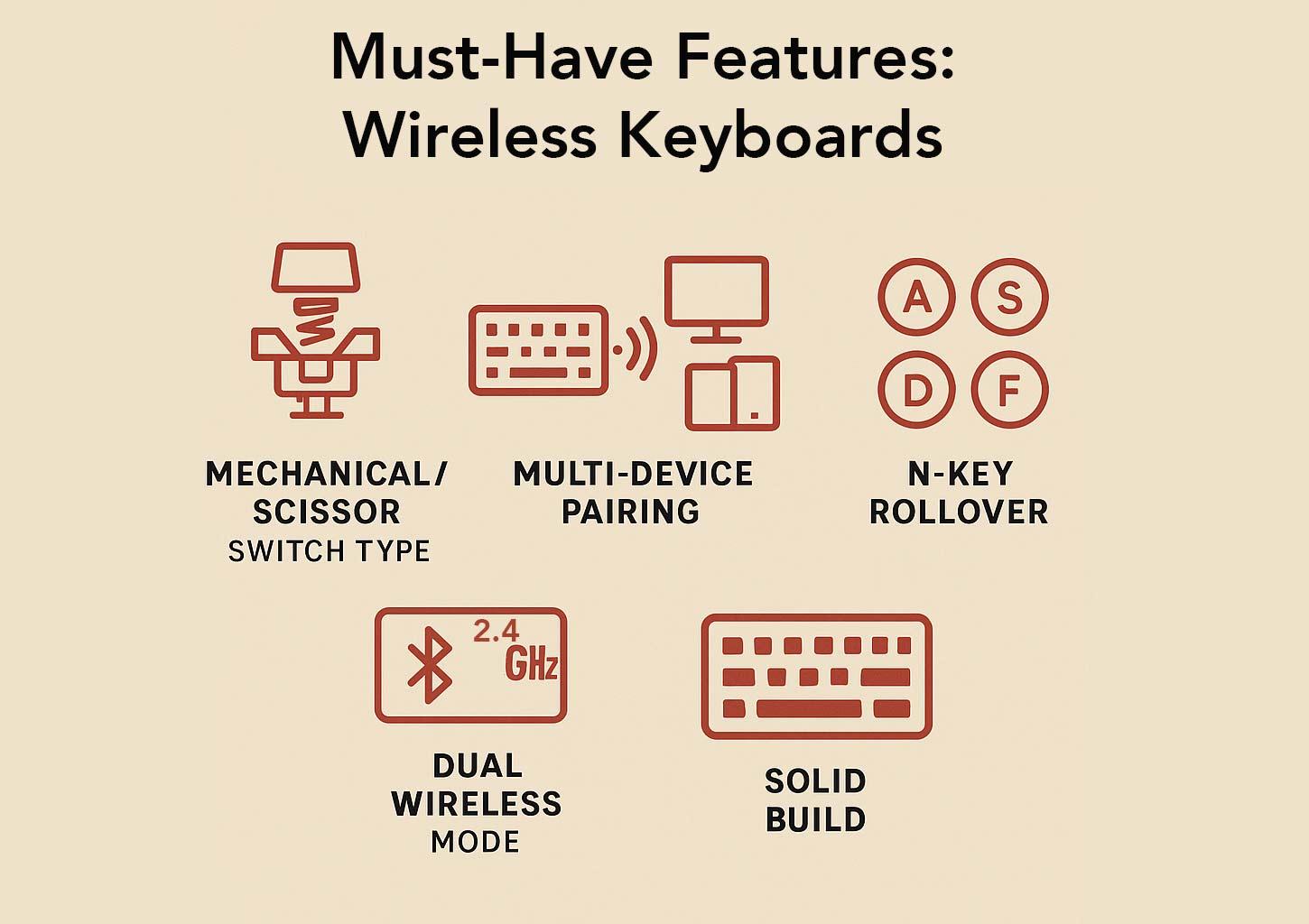
When choosing a wireless keyboard, prioritize the essentials that affect everyday performance and longevity:
- Switch Type – Mechanical switches offer the best balance of speed, feel, and durability. Scissor switches are a good second choice for quieter, slimmer designs.
- Multi-Device Pairing – Crucial for professionals and multitaskers.
- Dual Wireless Mode – Provides flexibility across gaming and productivity scenarios.
- Key Rollover – N-key rollover ensures reliable input for fast typing and gaming.
- Build Quality – A sturdy frame and durable keycaps turn a keyboard into a long-term investment.
Without these, even the flashiest keyboard will feel limiting.
Nice-to-Have Features
Once the essentials are covered, consider extras that enhance usability and style:
- Backlighting – Useful in dim environments; RGB adds flair but reduces battery life.
- Media & Macro Keys – Convenient shortcuts, though most functions can be replicated with software.
- Ergonomics – Split layouts, wrist rests, and curved designs improve comfort during long sessions.
- Customization & Design – Software for key remapping, lighting control, or themed aesthetics adds a personal touch.
These features aren’t required, but they can tip the balance when choosing between similar models.
Recommended Models
Flagship/Top-Tier
- Razer BlackWidow V3 Pro — A premium full-size mechanical keyboard with both Bluetooth and 2.4 GHz wireless options. It also includes wired USB-C, per-key RGB, N-key rollover, and a comfortable wrist rest. This model is built for gamers who demand speed and durability.
- Asus ROG Strix Scope II 96 Wireless — A compact mechanical keyboard with a near full-size layout. It offers hot-swappable switches, sturdy PBT keycaps, media controls, and multi-mode connectivity. Its design balances performance and portability.
Productivity/Professional
- Razer Pro Type Ultra — A wireless keyboard designed for office use, with quiet mechanical switches and multi-device support. It provides both dongle and Bluetooth connections, comes with a wrist rest, and delivers a professional look and feel.
- Logitech MX Keys S — A low-profile scissor-switch keyboard with smart backlighting and multi-device pairing. It focuses on comfort, accuracy, and long battery life, making it a strong choice for multitasking professionals.
Budget/Value
- Keychron B1 Pro
An affordable wireless keyboard with dual-mode connectivity and a sturdy aluminum-plastic build. It features low-profile scissor switches and reliable performance for everyday use at a low price point. - Redragon Vishnu K596 — A budget-friendly tenkeyless mechanical keyboard with 2.4 GHz wireless connectivity. It includes a volume wheel, macro keys, and RGB lighting, offering gaming features at a fraction of flagship prices.