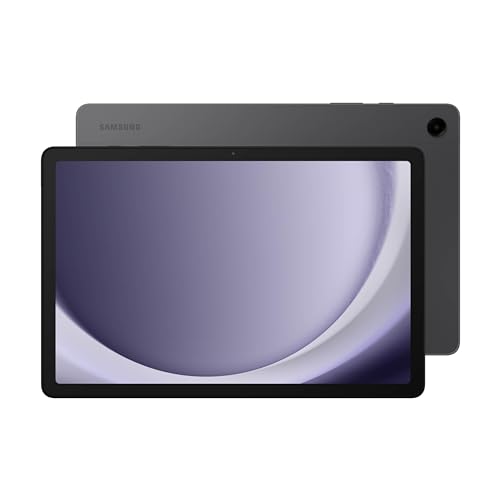













Tablets pick up more than fingerprints. Dust, oils, crumbs, and bacteria build up quickly, and cleaning them the wrong way can do more harm than good.
This guide walks you through exactly how to clean your tablet safely, including the screen, body, ports, and accessories, all without damaging coatings or letting moisture get inside.
Quick Answer: How to Clean a Tablet
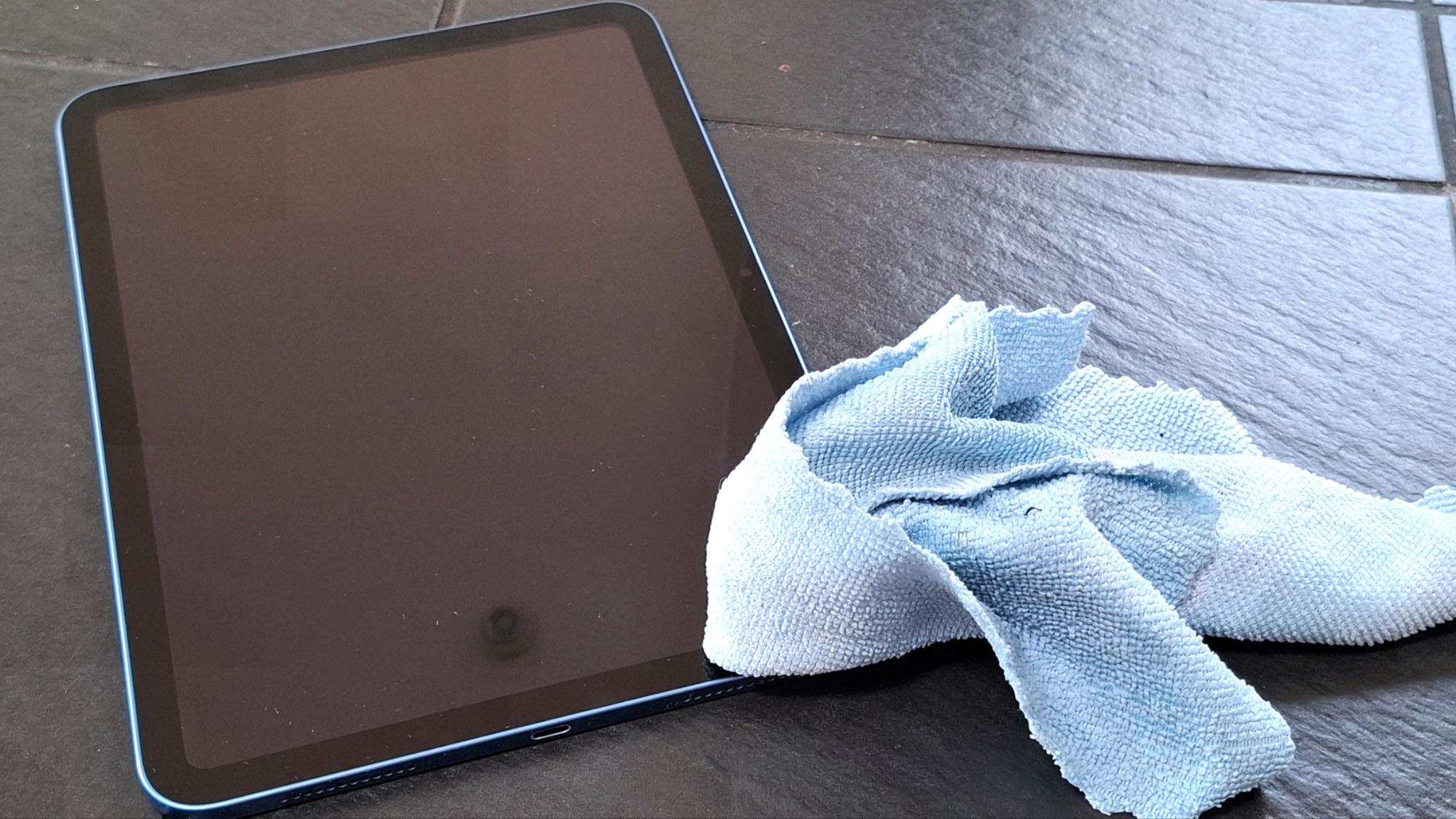
To clean a tablet safely, start with a dry microfiber cloth to remove dust, then use a slightly damp cloth (water or diluted soap) for smudges. For disinfecting, use a small amount of 70% isopropyl alcohol on the cloth, not directly on the device.
What You Need Before You Start
- Microfiber cloth (lint-free, non-abrasive)
- Small amount of water
- Mild soap (optional, diluted)
- 70% isopropyl alcohol (for occasional disinfecting)
- Soft brush or air (for ports and crevices)
What Not to Do When Cleaning a Tablet
Using harsh chemical cleaners
- Do not use bleach, ammonia-based cleaners, chlorine solutions, peroxide products, or strong solvents on a tablet as these products can wear down protective coatings, discolor materials, and damage plastic or rubber parts.
- Avoid multipurpose cleaning products, even if they are marketed for household surfaces, because they may be too harsh for electronics.
Using rough cleaning materials
- Do not use scrubbing pads, stiff sponges, paper towels, or similar rough materials on the device as they can leave scratches, create lint, and gradually dull the finish.
Spraying directly onto the device
- Never spray cleaner straight onto the tablet because liquid can slip into seams, buttons, speakers, ports, and camera openings.
- Apply a small amount of cleaner to the cloth first, then wipe the device carefully.
Allowing excess moisture
- Do not let water drip, pool, or collect around charging points, microphones, lenses, or other openings.
- Do not treat even a water-resistant tablet as if it were washable, because too much moisture can still cause damage.
- Keep the cloth only lightly damp, never soaked.
Overusing isopropyl alcohol
- Do not rely on high-strength alcohol too often, because repeated use can dry out finishes and weaken fingerprint-resistant coatings.
- When you are unsure, start with a nearly dry microfiber cloth and add only a tiny amount of water if needed.
Step-by-Step Guide to Cleaning a Tablet
Step 1: Power Down and Remove Accessories
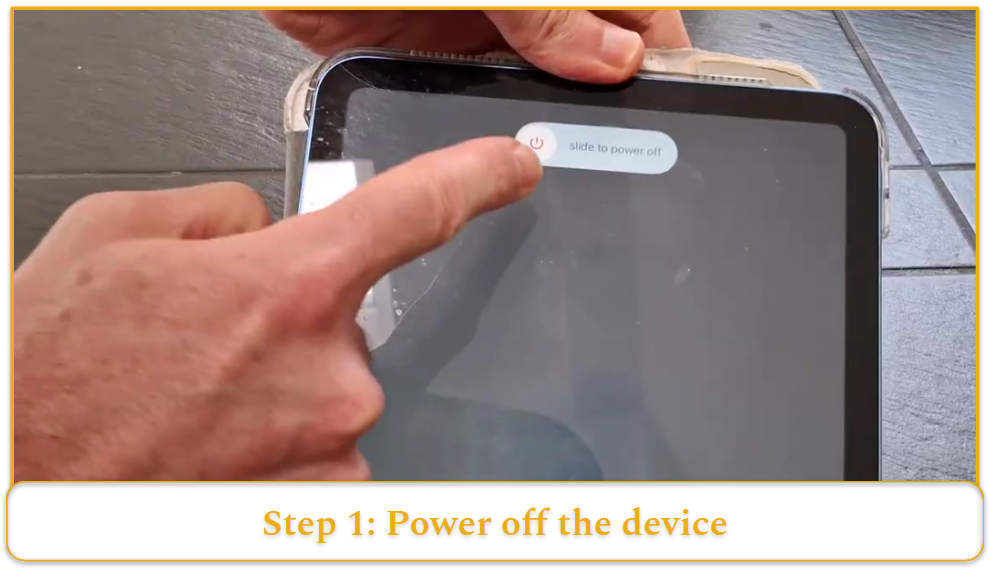
- Shut the tablet down completely before cleaning so you reduce the risk of damage.
- Disconnect chargers, headphones, keyboards, and any other accessories before you begin.
- Remove the protective case, cover, or stand so you can reach the screen, edges, buttons, and back panel fully.
Step 2: Remove Loose Dust First
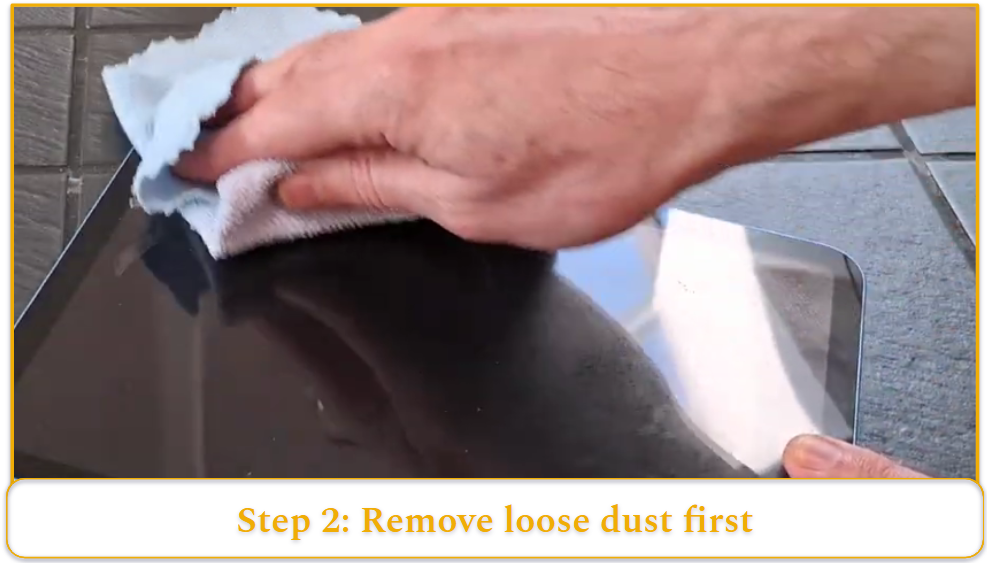
- Take a dry microfiber cloth and gently wipe the screen to lift away loose dust and surface debris.
- Use soft circular or sweeping motions rather than firm pressure so you do not grind particles against the surface.
- Wipe the back and sides in the same way after finishing the front.
- Complete this first pass carefully because it removes particles that could scratch the tablet during deeper cleaning.
Step 3: Clean Smudges on the Screen
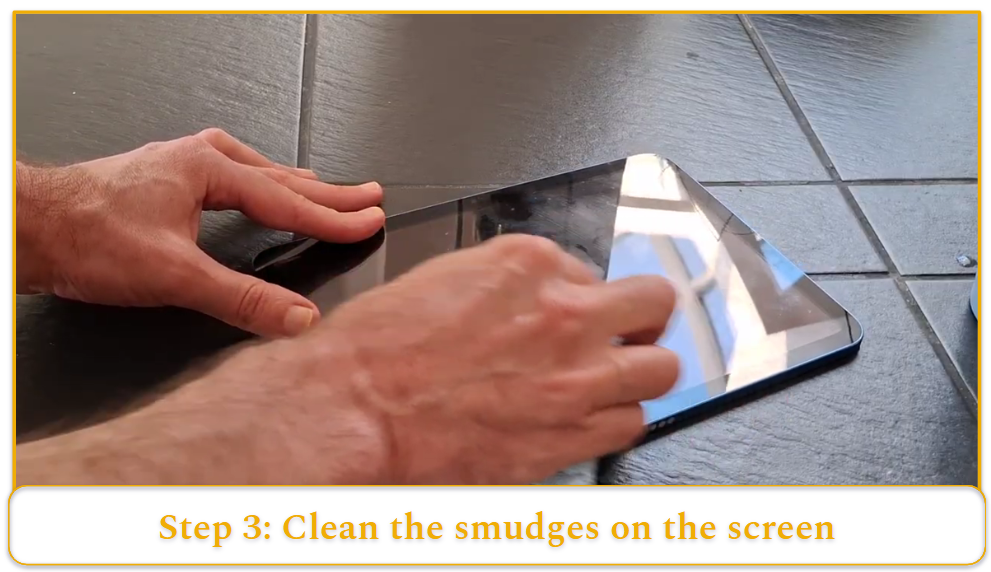
- Slightly dampen one corner of the cloth with water or a very weak soap mixture if smudges remain.
- Make sure the cloth is not wet enough to drip, because excess liquid should never run across the tablet.
- Wipe the screen slowly and evenly, focusing on fingerprints, streaks, and oily marks.
- Let the cloth do the work instead of pressing hard on the display.
- Use a dry section of the cloth afterward to remove any remaining moisture.
Step 4: Wipe the Body of the Tablet
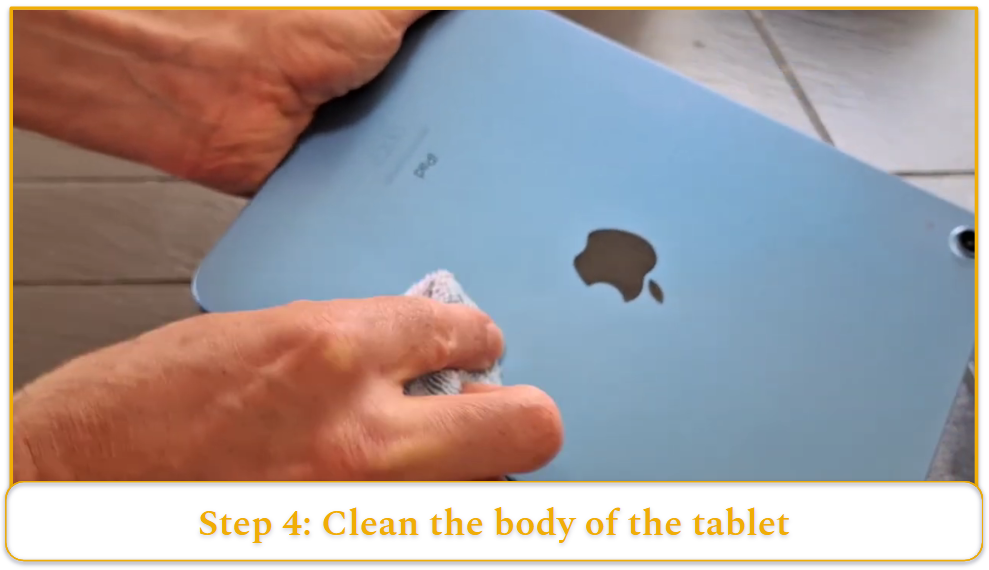
- Clean the back, outer edges, and buttons with the same lightly damp cloth.
- Pay close attention to corners and seams because dirt often collects in those areas.
- Polish the camera lens gently with a clean soft cloth so you remove haze without scratching it.
Step 5: Treat Stubborn Residue Carefully
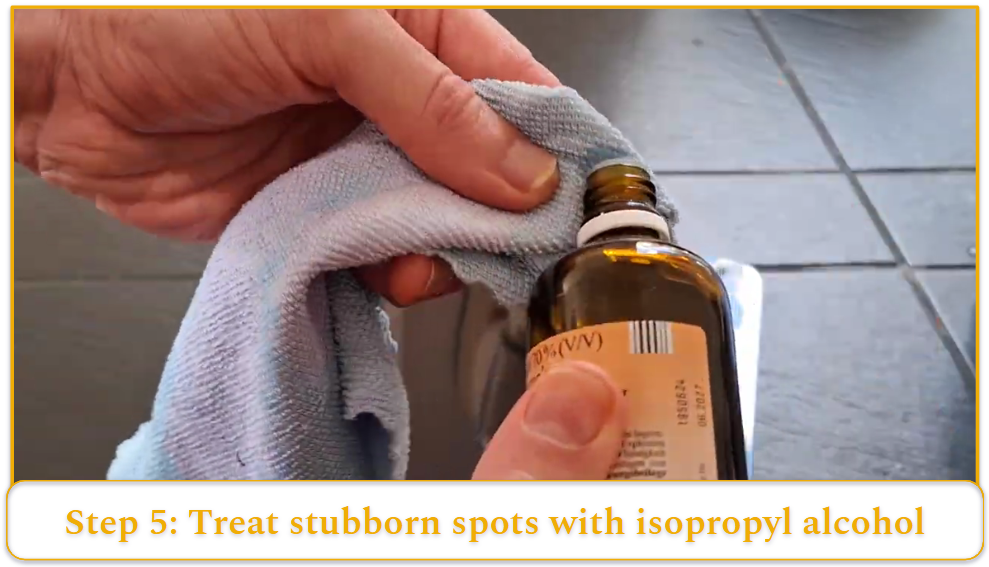
- Place a very small amount of 70% isopropyl alcohol on one part of the cloth if a mark is difficult to remove.
- Wipe the affected area gently and briefly rather than rubbing for too long.
- Never pour liquid directly onto the device.
- Go over the area again with a dry part of the cloth once the residue lifts.
Step 6: Dry, Inspect, and Reassemble
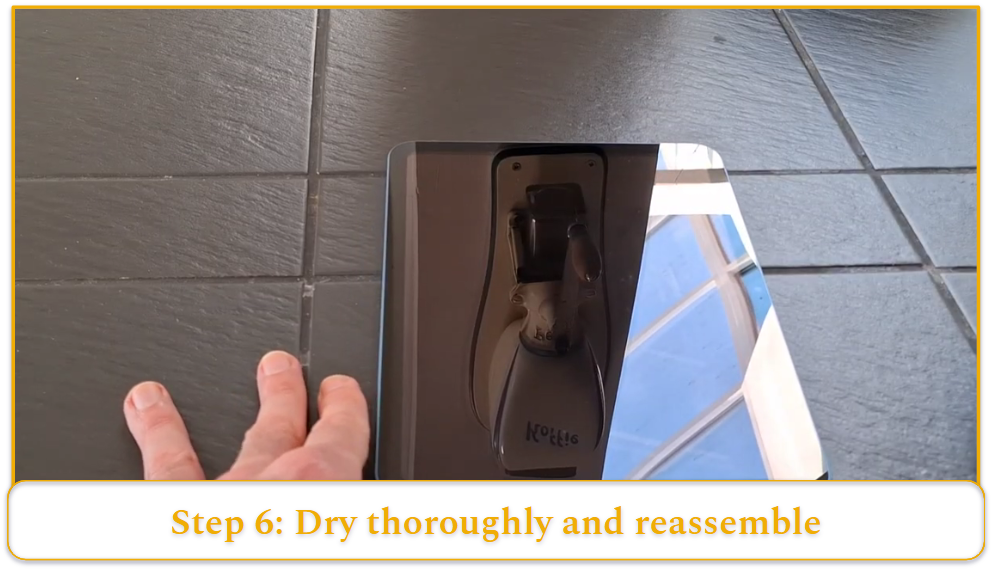
- Inspect the tablet from different angles under good light when cleaning is finished.
- Check that no moisture remains around edges, buttons, or openings before turning the device back on.
- Leave the tablet off for a few minutes so any trace dampness can evaporate fully.
- Put the case back on, reconnect accessories, and power the tablet up only after everything is completely dry.
How to Clean Ports, Cases, Keyboards, and Styluses
Charging Ports and Speaker Openings
Charging ports and speaker openings are small, delicate, and easy to damage. Handle these parts with extra care.
- Turn the tablet off.
- Use a soft dry brush or very gentle air to remove visible dust from ports and speaker openings.
- Loosen trapped lint carefully with a nonmetal tool, such as a wooden pick, if debris is stuck inside. Avoid pushing debris farther into the opening because that can make the blockage worse.
Never put liquid into ports or speaker openings because moisture in these areas can cause damage.
Tablet Cases
Clean the case separately from the tablet so you can treat both items properly.
- Wipe silicone and rubber cases with mild soap and water when they need more than a light surface clean. Clean fabric or leather-style covers more gently, using a method that suits the material.
- Let the case dry completely before reattaching it to the tablet to avoid trapped moisture coming in contact with the device.
Attachable Keyboards
- Disconnect or detach the keyboard before cleaning it.
- Use a soft cloth that is only slightly damp to wipe the keys and outer surfaces.
- Apply a small amount of alcohol to the cloth if you need extra help removing grime from plastic or metal areas.
- Take special care around the spaces between keys because excess moisture can settle there easily.
Keep the keyboard as dry as possible throughout the process to avoid moisture getting into internal components.
Styluses and Screen Protectors
- Wipe with microfiber cloth
- Clean tip and barrel
- Replace screen protector if scratched or cloudy
Common Mistakes That Can Damage a Tablet
The biggest mistake is using too much liquid. A tablet should never be soaked, rinsed under a tap, or exposed to puddles of cleaner. Even a small amount of trapped moisture can harm internal components.
Another common error is spraying products directly onto the device. That makes it far easier for liquid to reach openings and leave residue behind.
Using the wrong type of cloth is also risky. Rough paper products and abrasive fabrics can scratch surfaces and leave behind lint.
Using household cleaners, such as products meant for windows, bathrooms, or kitchen surfaces, are often far too harsh for a tablet.
Scrubbing too firmly is another avoidable problem, especially on the screen, where pressure can damage coatings or even the panel itself.
Aggressive port cleaning is another area where people get careless. Metal tools, wet swabs, and forceful digging can bend connectors or leave fibers trapped inside.
Finally, turning the tablet back on too quickly after cleaning can create unnecessary risk. A few extra minutes of drying time is always worth it.
How Often Should You Clean a Tablet?
- Daily: Wipe away fresh fingerprints, crumbs, or light surface dust as needed so buildup does not become harder to remove later.
- Weekly: Use a dry or slightly damp soft cloth to remove smudges, dust, and light grime before they accumulate.
- Every 1-2 Weeks: Clean the case whenever it starts to look grimy or feel sticky so it does not transfer dirt back onto the device.
- Monthly: Clean keyboards and styluses at least once a month if they are used regularly.
- Only When Needed: Disinfect the tablet only when circumstances make it necessary, rather than treating sanitizing as part of routine cleaning.